Directives are markers in the Document Object Model (DOM) that define specific behavior or functionality. They instruct the compiler on how to modify or interact with HTML elements.
- Directives can be applied to HTML elements or used with controllers to control DOM behavior.
- Angular provides several predefined directives for common use cases.
- Developers can also create custom directives to implement specific functionality.
List of Directives
AngularJS provides built-in directives that help control application behavior, manage data binding, and dynamically manipulate the DOM based on conditions and user interactions.
- ng-app: Defines the starting point of an AngularJS application and initializes it.
- ng-init: Initializes variables directly within the HTML view.
- ng-model: Binds input, select, or textarea elements to application data.
- ng-controller: Connects a controller to the HTML view for managing data and logic.
- ng-bind: Binds application data to HTML elements and updates them dynamically.
- ng-repeat: Repeats an HTML element for each item in a specified collection.
- ng-show: Displays an HTML element based on a given condition.
- ng-hide: Hides an HTML element when a specified condition is true.
- ng-readonly: Makes an HTML input element read-only based on an expression.
- ng-disabled: Dynamically enables or disables an HTML element.
- ng-if: Removes or recreates an HTML element depending on a condition.
- ng-click: Executes an expression when the user clicks on an element.
- ng-class: Dynamically applies CSS classes based on conditions.
- ng-submit: Executes a function when an HTML form is submitted.
We will be discussing a few of the Directives among the list of Directives given, with their basic implementation.
ng-app
The ng-app Directive in AngularJS is used to define the root element of an AngularJS application. This directive automatically initializes the AngularJS application on page load. It can be used to load various modules in AngularJS Applications.
Example: This example uses ng-app Directive to define a default AngularJS application.
<html>

<head>
    <title>AngularJS ng-app Directivetitle>

    <script src=
"https://ajax.googleapis.com/ajax/libs/angularjs/1.6.9/angular.min.js">
    script>
head>

<body style="text-align:center">
    <h2 style="color:green">ng-app directiveh2>
    <div ng-app="" ng-init="name='GeeksforGeeks'">
        <p>{{ name }} is the portal for geeks.p>
    div>
body>

html>
Output:

ng-init
The ng-init directive is used to initialize an AngularJS Application data. It defines the initial value for an AngularJS application and assigns values to the variables. The ng-init directive defines initial values and variables for an AngularJS application.
Example: In this example, we initialize an array of strings.
<html>
<head>
    <script src=
"https://ajax.googleapis.com/ajax/libs/angularjs/1.6.9/angular.min.js">
    script>
    <title>AngularJS ng-init Directivetitle>
head>
<body>
    <h1 style="color:green">
          GeeksforGeeks
      h1>
    <h2>ng-init directiveh2>
    <div ng-app=""
         ng-init="sort=['quick sort',
                        'merge sort',
                        'bubble sort']">
        Sorting techniques:
        <ul>
            <li>{{ sort[0] }} li>
            <li>{{ sort[1] }} li>
            <li>{{ sort[2] }} li>
        ul>
    div>
body>
html>
Output:

ng-model
The ngModel is a directive that binds input, select, and textarea, and stores the required user value in a variable and we can use that variable whenever we require that value. It also is used during validations in a form.
Example: This example describes the basic usage of the ngModel Directive in Angular JS.
<html>
<head>
    <script src="https://ajax.googleapis.com/ajax/libs/angularjs/1.6.9/angular.min.js">script>
    <style>
        .column {
            float: left;
            text-align: left;
            width: 49%;
        }
        .row {
            display: table;
            width: 100%;
        }
    style>
head>
<body ng-app="myApp" ng-controller="myController">
    <h4>Input Boxh4>
    <div class="row">
        <div class="column">
            Name:
            <input type="text" ng-model="name">
            <pre>{{ name }}pre>
            Checkbox:
            <input type="checkbox" ng-model="check">
            <pre>{{ check }}pre>
            Radio:
            <input type="radio" ng-model="choice" value="Yes">
            <pre>{{ choice }}pre>
            Number:
            <input type="number" ng-model="num">
            <pre>{{ num }}pre>
            Email:
            <input type="email" ng-model="mail">
            <pre>{{ mail }}pre>
            URL:
            <input type="url" ng-model="url">
            <pre>{{ url }}pre>
        div>
        <div class="column">
            Date:
            <input type="date" ng-model="date1">
            <pre>{{ date1 }}pre>
            Datetime-local:
            <input type="datetime-local" ng-model="date2">
            <pre>{{ date2 }}pre>
            Time:
            <input type="time" ng-model="time1">
            <pre>{{ time1 }}pre>
            Month:
            <input type="month" ng-model="mon">
            <pre>{{ mon }}pre>
            Week:
            <input type="week" ng-model="we">
            <pre>{{ we }}pre>
        div>
    div>
    <script>
        var app = angular.module("myApp", []);
        app.controller("myController", function ($scope) {
            $scope.name = "Hello Geeks!";
            $scope.check = false;
            $scope.choice = "";
            $scope.num = "";
            $scope.mail = "";
            $scope.url = "";
            $scope.date1 = "";
            $scope.date2 = "";
            $scope.time1 = "";
            $scope.mon = "";
            $scope.we = "";
        });
    script>
body>
html>
Output: 
ng-controller
The ng-controller Directive in AngularJS is used to add the controller to the application. It can be used to add methods, functions, and variables that can be called on some event like click, etc. to perform certain actions.
Example: This example describes the basic usage of the ng-controller Directive in Angular JS.
<html>
<head>
    <title>ng-controller Directivetitle>
    <script src="https://ajax.googleapis.com/ajax/libs/angularjs/1.6.9/angular.min.js">script>
head>
<body ng-app="app"
      style="text-align:center">
    <h1 style="color:green">GeeksforGeeksh1>
    <h2>ng-controller Directiveh2><br>
    <div ng-controller="geek">
        Name:
          <input class="form-control"
               type="text"
               ng-model="name">
        <br><br>
        You entered: <b><span>{{name}}span>b>
    div>
    <script>
        var app = angular.module('app', []);
        app.controller('geek', function ($scope) {
            $scope.name = "geeksforgeeks";
        });
    script>
body>
html>
Output:

ng-bind
The ng-bind directive in AngularJS is used to bind/replace the text content of any particular HTML element with the value that is entered in the given expression. The value of specified HTML content updates whenever the value of the expression changes in the ng-bind directive.
Example: This example describes the basic usage of the ng-bind Directive in Angular JS.
<html>
<head>
    <script src=
"https://ajax.googleapis.com/ajax/libs/angularjs/1.6.9/angular.min.js">
    script>
head>
<body ng-app="gfg"
      style="text-align:center">
    <h1 style="color:green">GeeksforGeeksh1>
    <h2>ng-bind Directiveh2>
    <div ng-controller="app">
        num1: <input type="number"
                     ng-model="num1"
                     ng-change="product()" />
        <br><br>
        num2: <input type="number"
                     ng-model="num2"
                     ng-change="product()" />
        <br><br>
        <b>Product:b>
          <span ng-bind="result">span>
    div>
    <script>
        var app = angular.module("gfg", []);
        app.controller('app', ['$scope', function ($app) {
            $app.num1 = 1;
            $app.num2 = 1;
            $app.product = function () {
                $app.result = ($app.num1 * $app.num2);
            }
        }]);
    script>
body>
html>
Output:

ng-repeat
AngularJS ng-repeat directive is a handy tool to repeat a set of HTML code a number of times or once per item in a collection of items. ng-repeat is mostly used on arrays and objects.
The ng-repeat is similar to a loop that we have in C, C++, or other languages but technically it instantiates a template(normally a set of HTML structures) for each element in a collection that we are accessing. Angular maintains a $index variable as a key to the element which is currently being accessed and the user can also access this variable.
Example: This example illustrates the basic implementation of the ng-repeat directive in Angular JS.
- Create an app.js file for the app.
var app = angular.module('myApp',[]);

app.controller('MainCtrl', function($scope){
    $scope.names = ['Adam','Steve','George','James','Armin'];
    console.log($scope.names);
});
Line 1- Created an app module named “myApp” with no dependencies.
Line 3- Main controller for our application.
Line 4- Array of strings “names”.
- Create index.html page
<html ng-app="myApp">
<head>
    <title>Angular ng-repeattitle>
    <script type="text/javascript"
            src="angular.js">
      script>
    <script type="text/javascript"
            src="app.js">
      script>
head>
<body ng-controller="MainCtrl">
    <h2>Here is the name listh2>
    <ul>
        <li ng-repeat="name in names">
            {{name}}
        li>
    ul>
body>
html>
Line 5- Include all the dependencies like jquery, angular-js, and app.js file
Line 12- Use the ng-repeat directive to get one name from the names array at a time and display it.
Output:

ng-show
The ng-show Directive in AngularJS is used to show or hide the specified HTML element. If the given expression in the ng-show attribute is true then the HTML element will display otherwise it hides the HTML element. It is supported by all HTML elements.
Example: This example uses ng-show Directive to display the HTML element after checked the checkbox.
<html>
<head>
    <title>ng-show Directivetitle>
    <script src=
"https://ajax.googleapis.com/ajax/libs/angularjs/1.6.9/angular.min.js">
    script>
head>
<body>
    <div ng-app="app"
         ng-controller="geek">
        <h1 style="color:green">
              GeeksforGeeks
          h1>
        <h2>ng-show Directiveh2>
        <input id="chshow"
               type="checkbox"
               ng-model="show" />
        <label for="chshow">
            Show Paragraph
        label>
        <p ng-show="show"
           style="background: green;
                  color: white;
                  font-size: 14px;
                  width:35%;
                  padding: 10px;">
            Show this paragraph using ng-show
        p>
    div>
    <script>
        var myapp = angular.module("app", []);
        myapp.controller("geek", function ($scope) {
            $scope.show = false;
        });
    script>
body>
html>
Output:

ng-readonly
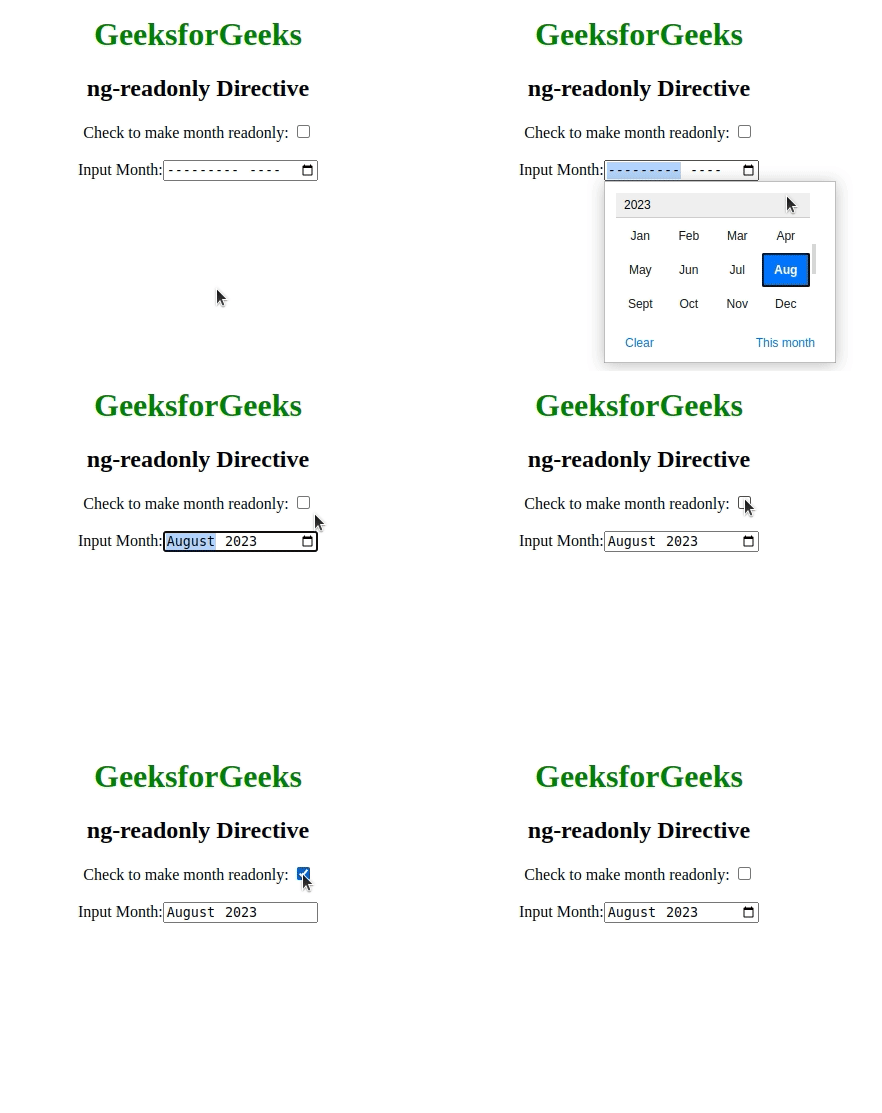
The ng-readonly Directive in AngularJS is used to specify the readonly attribute of an HTML element. The HTML element will be readonly only if the expression inside ng-readonly directive returns true.
Example: This example uses ng-readonly Directive to enable readonly property.
<html>
<head>
    <title>ng-readonly Directivetitle>
    <script src=
"https://ajax.googleapis.com/ajax/libs/angularjs/1.6.9/angular.min.js">
    script>
head>
<body ng-app style="text-align:center">
    <h1 style="color:green">GeeksforGeeksh1>
    <h2>ng-readonly Directiveh2>
    <div>
        <label>Check to make month readonly:
          <input type="checkbox"
                 ng-model="open">
          label>
        <br><br>
        Input Month:
          <input ng-readonly="open"
               type="month"
               ng-model="month">
    div>
body>
html>
Output:
ng-disabled
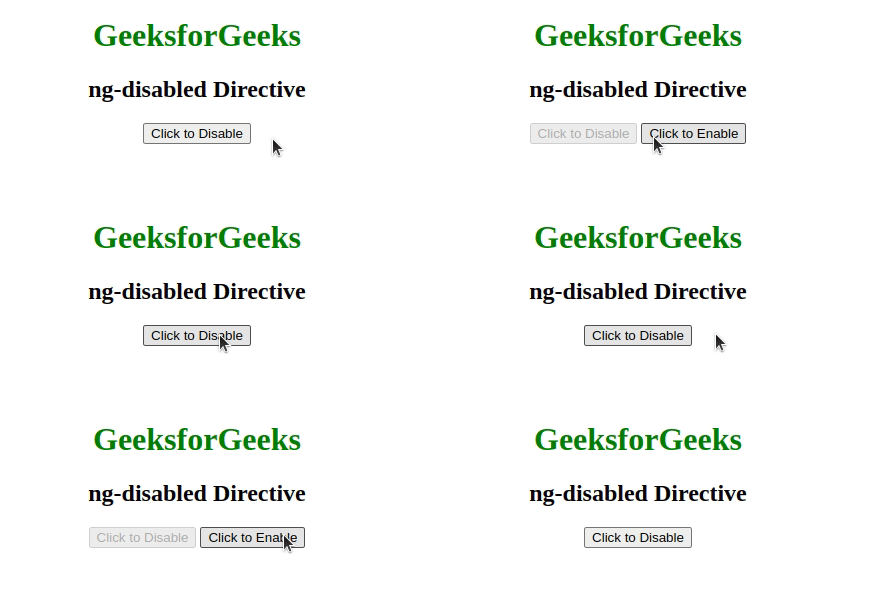
The ng-disabled Directive in AngularJS is used to enable or disable HTML elements. If the expression inside the ng-disabled attribute returns true then the form field will be disabled or vice versa. It is usually applied on the form field (input, select, button, etc.).
Example: This example uses ng-disabled Directive to disable the button.
<html>
<head>
    <title>ng-disabled Directivetitle>
    <script src=
"https://ajax.googleapis.com/ajax/libs/angularjs/1.6.9/angular.min.js">
    script>
head>
<body ng-app="app" style="text-align:center">
    <h1 style="color:green">GeeksforGeeksh1>
    <h2>ng-disabled Directiveh2>
    <div ng-controller="app"
         ng-init="disable=false">
        <button ng-click="geek(disable)"
                ng-disabled="disable">
            Click to Disable
        button>
        <button ng-click="geek(disable)"
                ng-show="disable">
            Click to Enable
        button>
    div>
    <script>
        var app = angular.module("app", []);
        app.controller('app', ['$scope', function ($app) {
            $app.geek = function (disable) {
                $app.disable = !disable;
            }
        }]);
    script>
body>
html>
Output:
ng-if
The ng-if Directive in AngularJS is used to remove or recreate a portion of an HTML element based on an expression. The ng-if is different from the ng-hide because it completely removes the element in the DOM rather than just hiding the display of the element. If the expression inside it is false then the element is removed and if it is true then the element is added to the DOM.
Example: This example changes the content after clicking the button.
<html>
<head>
    <title>ng-if Directivetitle>
    <script src=
"https://ajax.googleapis.com/ajax/libs/angularjs/1.6.9/angular.min.js">
    script>
head>
<body ng-app="geek"
      style="text-align:center">
    <h1 style="color:green">
        GeeksforGeeks
    h1>
    <h2>ng-if Directiveh2>
    <div ng-controller="app as vm">
        <div ng-if="!vm.IsShow">
            <input type="button"
                   class="btn btn-primary"
                   ng-click="vm.IsShow=!vm.IsShow"
                   value="Sign in">
            <p>Click to Sign inp>
        div>
        <div ng-if="vm.IsShow">
            <button class="btn btn-primary"
                    ng-click="vm.IsShow=!vm.IsShow">
                Sign out
            button>
            <p>
                GeeksforGeeks is the computer
                science portal for geeks.
            p>
        div>
    div>
    <script>
        var app = angular.module("geek", []);
        app.controller('app', ['$scope', function ($scope) {
            var vm = this;
        }]);
    script>
body>
html>
Output:

ng-click
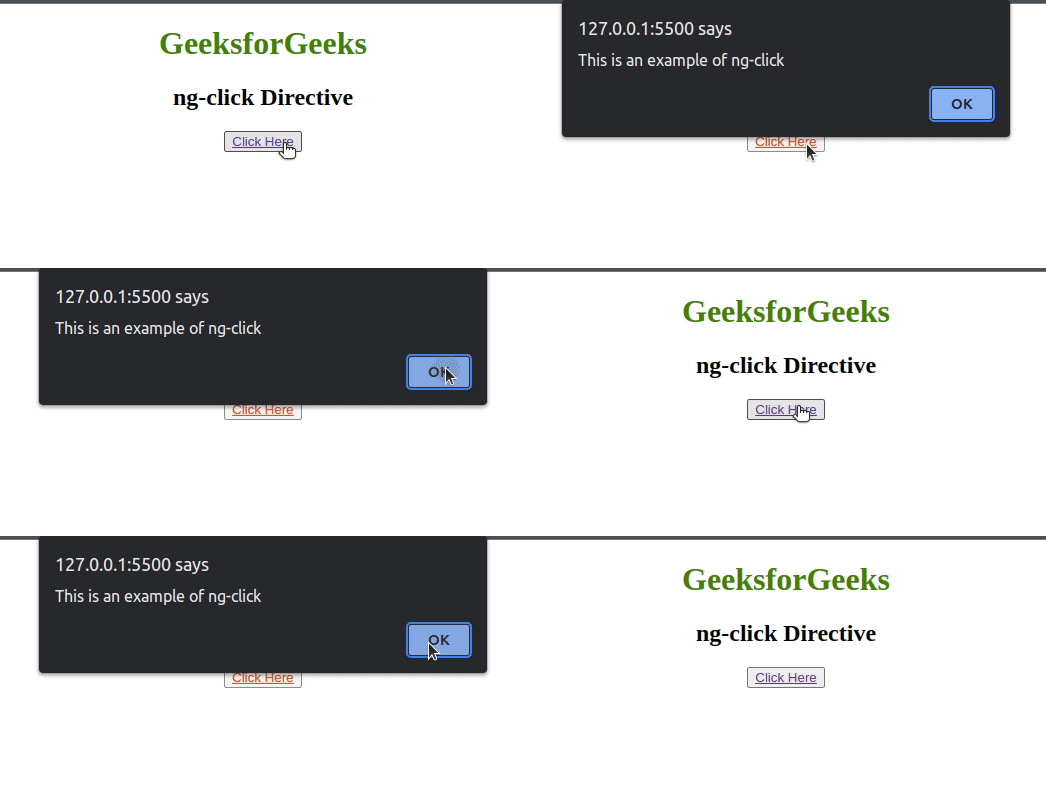
The ng-click Directive in AngularJS is used to apply custom behavior when an element is clicked. It can be used to show/hide some element or it can pop up an alert when the button is clicked.
Example: This example uses ng-click Directive to display an alert message after clicking the element.
<html>
<head>
    <title>ng-click Directivetitle>
    <script src=
"https://ajax.googleapis.com/ajax/libs/angularjs/1.6.9/angular.min.js">
    script>
head>
<body ng-app="geek"
      style="text-align:center">
    <h1 style="color:green">
          GeeksforGeeks
      h1>
    <h2>ng-click Directiveh2>
    <div ng-controller="app">
        <button>
            <a href="" ng-click="alert()">
                Click Here
            a>
        button>
    div>
    <script>
        var app = angular.module("geek", []);
        app.controller('app', ['$scope', function ($app) {
            $app.alert = function () {
                alert("This is an example of ng-click");
            }
        }]);
    script>
body>
html>
Output: