

外掛說明
深受超過 30 萬個 WordPress 網站信賴,獲得 4.9 星評分與超過 450 則五星評論,持續積極開發超過 10 年,並已翻譯成 15 種以上的語言。
Simple History 是功能完整的 WordPress 稽核記錄工具。它會追蹤每一項重要變更,包括內容編輯、使用者登入、外掛更新、安全性事件等,讓網站擁有者、團隊、代理商及開發者隨時掌握誰在何時做了什麼。只要安裝並啟用即可,無需設定。
每個事件都以便於閱讀的方式呈現:以已更新「關於我們」頁面等白話文字、例如「5 分鐘前」的相對時間,以及變更前後的比較,而不是傾印原始資料。
🔍 Simple History 如何協助處理實際情境
掌握網站上發生的事
「今天有人做了什麼嗎?原來 Sarah 上傳了新的新聞稿,還為它建立了一篇文章。太好了,這樣我就不用處理了。」
更快找出問題並進行偵錯
「網站從昨天開始變慢了。有人做了什麼特別的事嗎?……原來 Steven 啟用了『naughty-plugin-x』,問題一定出在這裡。」
掌握自由工作者與代理商的工作成果
「我聘請開發者最佳化網站,但他真的有做事嗎?只要快速瀏覽 Simple History,就能清楚看到他處理了哪些工作。」
及早發現可疑活動
「我發現半夜有 3 次來自陌生 IP 位址的登入失敗。我可以按一下這個 IP,查看來自該位址的所有活動,只顯示這些嘗試,不含其他事件。很實用。」
✨ Simple History 會追蹤哪些內容
安全性與監控
- 追蹤使用者登入失敗的 IP 位址,並依類型篩選(密碼錯誤或使用者名稱不存在)
- 依官方總和檢查碼驗證核心檔案完整性
- 由 WordPress.org 強制執行的安全性自動更新
- 網站健康狀態變更
- 後台頁面存取遭拒事件
內容與使用者
- 文章、頁面及自訂內容類型,包括建立、編輯、刪除及指派首頁
- 附件的圖片編輯詳細資料(裁切、旋轉、翻轉、縮放)與縮圖預覽
- 分類法名稱、代稱、內容說明及上層項目的詳細差異
- 留言、選單(包含項目層級的詳細資料)及小工具
- 使用者個人資料、登入、登出及角色變更
- 備註,這是 WordPress 6.9 的協作功能
系統與更新
- 外掛生命週期:安裝、更新、啟用、停用、刪除,以及切換自動更新
- 安裝、更新、啟用、切換及刪除佈景主題
- WordPress 核心更新(手動與自動)
- 翻譯與語言套件更新
- 可用更新通知
- 設定與選項畫面變更
隱私權與法規遵循
- 隱私權資料匯出與使用者資料清除要求
- 隱私權頁面變更
- IP addresses are masked by default: the last part is removed before storing
- Sets no cookies and loads no external fonts
- 記錄 WordPress AI 外掛活動,但絕不儲存 API 金鑰或提示詞內容
🔌 內建第三方外掛支援
Simple History 內建下列項目的記錄功能:
- Two Factor – Logins are logged when the two-factor code is accepted, with the method used, and wrong codes as failed logins
- Wordfence – Whether a login used two-factor authentication and which method, and wrong codes as failed logins
- Kadence Security (formerly Solid Security) – Wrong two-factor codes as failed logins
- WordPress AI 外掛 – 功能開關、AI 供應商與模型變更,以及連接器核准要求、授權及撤銷
- Jetpack – 模組啟用與停用
- Advanced Custom Fields (ACF) – 欄位群組與欄位變更
- User Switching – 使用者切換事件
- WP Crontrol – Cron 事件與排程變更
- Enable Media Replace – 檔案取代詳細資料
- Limit Login Attempts – 登入嘗試、鎖定及設定變更
- Redirection – 重新導向與群組變更、全域設定
- Duplicate Post – 複製文章與頁面
- Beaver Builder – 版面配置、範本及設定儲存
Plugins that log to Simple History themselves include my CMS Tree Page View (page moves and new pages) and Simple SEO (SEO title and description changes, with before and after).
沒有看到您的外掛嗎?外掛開發者可使用 Logging API 加入支援。
💬 使用者怎麼說
WordPress.org 上有 450 多則五星評論:
- 「目前為止最好、功能最完整的活動記錄外掛」 – @herrschuessler
- 「這是我找到最棒的活動記錄外掛」 – Rich Mehta
- 「超棒的外掛,我所有網站都會使用」 – Duncan Michael-MacGregor
- 「這是我們所有網站的標準配備」 – Mr Tibbs
🚀 隨處查看您的活動記錄
Simple History 啟用後會立即開始追蹤,無需設定。它甚至會匯入近期活動,因此使用第一天活動記錄也不會一片空白。您可以從下列位置查看活動記錄:
- 控制台小工具 – 活動統計摘要與近期事件
- 管理工具列快速檢視 – 在任何後台頁面透過下拉式選單查看最新事件
- 命令面板 – 輸入「Simple History」,即可前往目前文章的活動記錄
- 專用管理頁面 – 提供完整活動記錄,含搜尋、篩選器與洞察側邊欄
- 電子郵件報告 – 每週將摘要寄到您的收件匣
- RSS Feed – 提供密碼保護,可供您慣用的資訊提供閱讀器訂閱
- WP-CLI – 透過命令列執行自動化與指令碼
- REST API – 提供自訂整合所需的程式化存取
📧 每週電子郵件報告 – 不必登入也能掌握近況
每週電子郵件報告會在每週一早上提供網站活動摘要,包括活動總數、每日明細、重要指標(登入、內容更新、外掛變更),以及前往完整活動記錄的直接連結。
非常適合網站擁有者、代管客戶網站的代理商,以及需要定期掌握近況又不想登入的團隊。您可以在設定中啟用,並在開啟前查看電子郵件內容範例。
🛠️ 適合開發者與進階使用者
- WP-CLI – 從命令列列出、搜尋及匯出事件,非常適合自動化及管理多個網站
- REST API – 提供完整的程式化存取,可查詢活動記錄及新增自訂事件。請參閱說明文件
- Logging API – 只需一行程式碼,即可從佈景主題與外掛記錄自己的事件
- RSS Feed – 使用任何資訊提供閱讀器訂閱變更
- 適合 AI 與代理程式 – REST API 與 RSS Feed 讓 AI 代理程式及 Claude Code 等自動化工作流程都能存取 Simple History
- 隱身模式 – 透過程式碼將 Simple History 完全隱藏於後台介面;Premium 另提供圖形介面。非常適合代理商與客戶網站
🔆 使用附加元件擴充功能
Simple History Premium
警示與通知 – 發生重要事件時,立即透過電子郵件、Slack、Discord 或 Telegram 接收通知。您可以使用常見情境的預設規則快速開始,也能依事件類型、使用者、角色及記錄層級篩選並建立自訂規則。
記錄轉送 – 將事件串流至外部目的地:本機記錄檔、syslog 伺服器(UDP/TCP/TLS)、Datadog、Splunk、Webhook,或外部 MySQL/MariaDB 資料庫。非常適合集中式記錄、法規遵循及備份。
進階控制 – 自訂保留期間(或永久保留記錄)、將篩選後的搜尋結果匯出為 CSV/JSON、在區塊編輯器中顯示文章活動面板、為團隊決策新增自訂記錄項目、隱身模式圖形介面、可精細調整事件記錄範圍的記錄器控制功能,以及無廣告的使用體驗。
WooCommerce Logger
追蹤 WooCommerce 活動:訂單、退款、庫存變更、商品更新、價格調整、設定修改及優惠券使用情況。
Debug and Monitor
監控傳出的 HTTP 請求與電子郵件、對 API 呼叫進行偵錯,並查看系統內部的運作情況。這是開發者與支援團隊不可或缺的工具。
💚 贊助這個專案
如果您喜歡這個外掛,請考慮贊助此外掛的免費版本開發。此外掛已免費提供超過 10 年,未來也會繼續免費。
螢幕擷圖
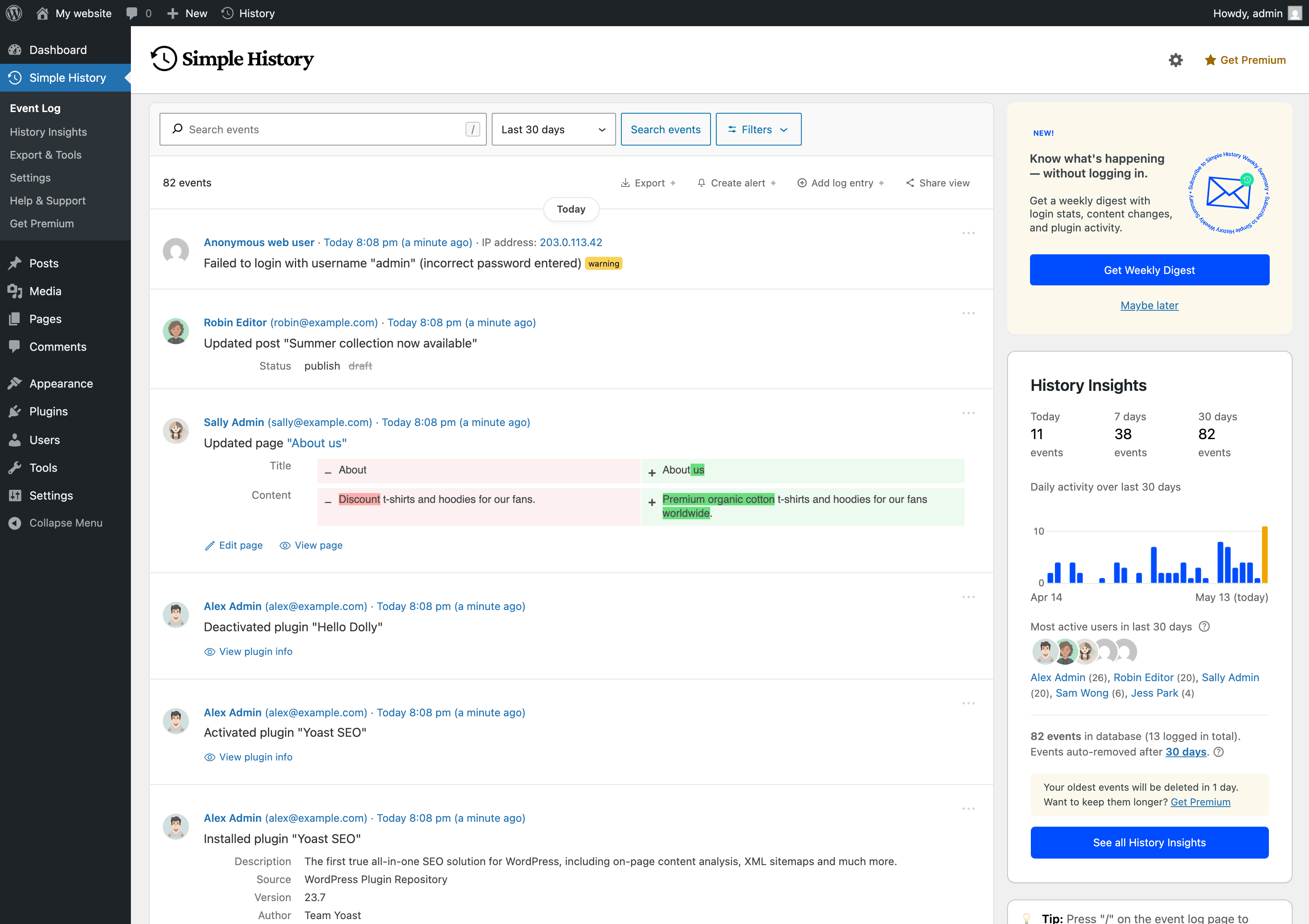
主要活動記錄:以清楚的時間軸呈現誰在何時、從哪裡於網站上做了什麼,旁邊還有顯示每日活動與最活躍使用者的側邊欄。
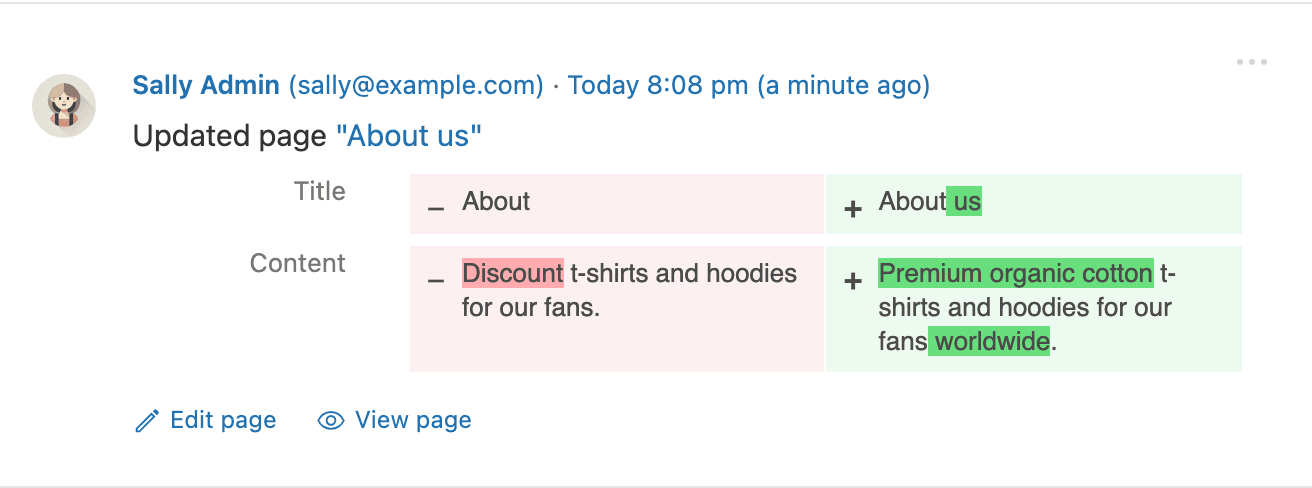
內容變更會顯示完整的變更前後差異,讓您清楚看到文章或頁面上究竟編輯了哪些文字,而不只知道內容有所變更。
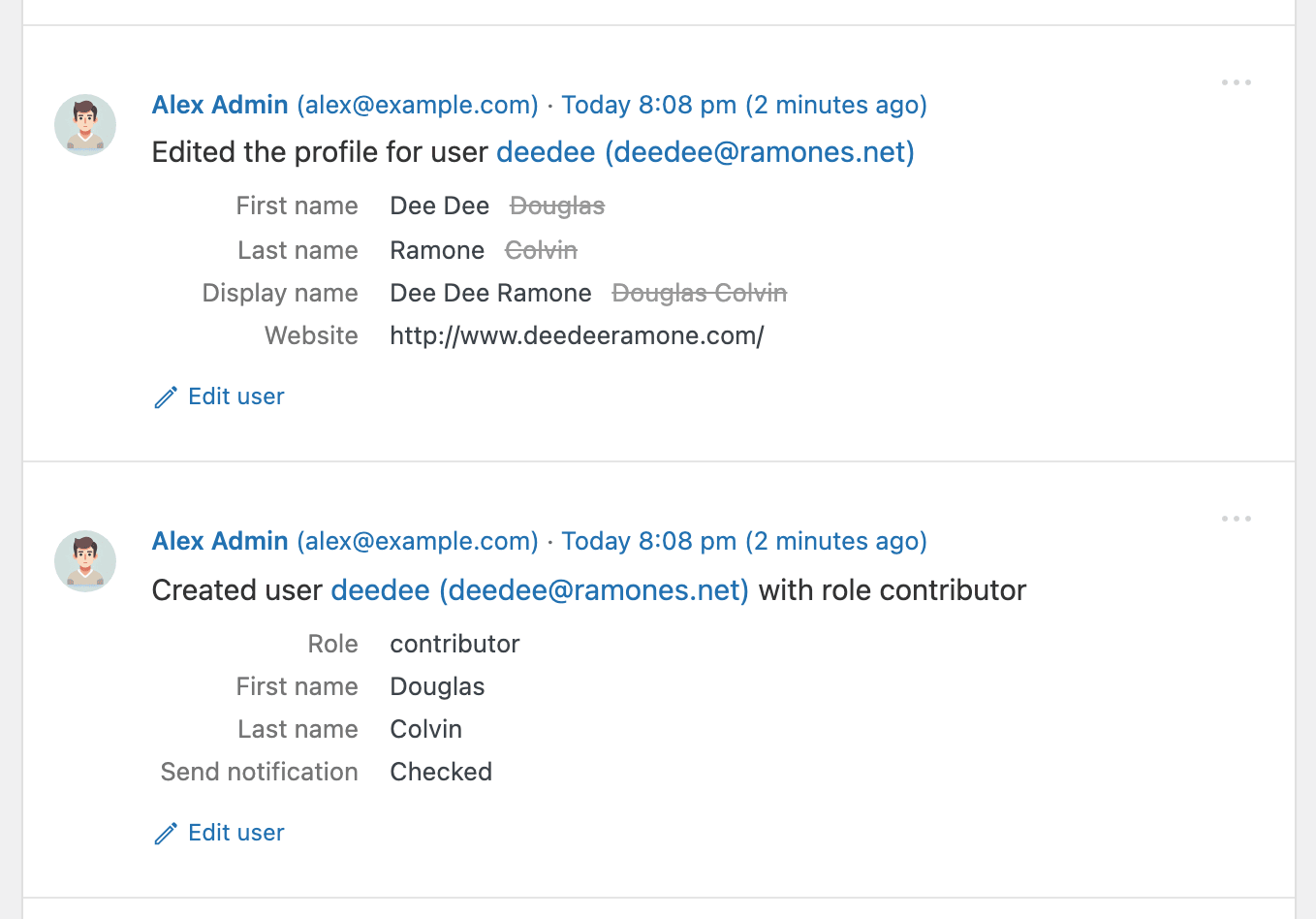
使用者事件會記錄個人資料的每項變更:名字、姓氏、顯示名稱、網站、角色等,並將原值保留在新值旁供您比對。
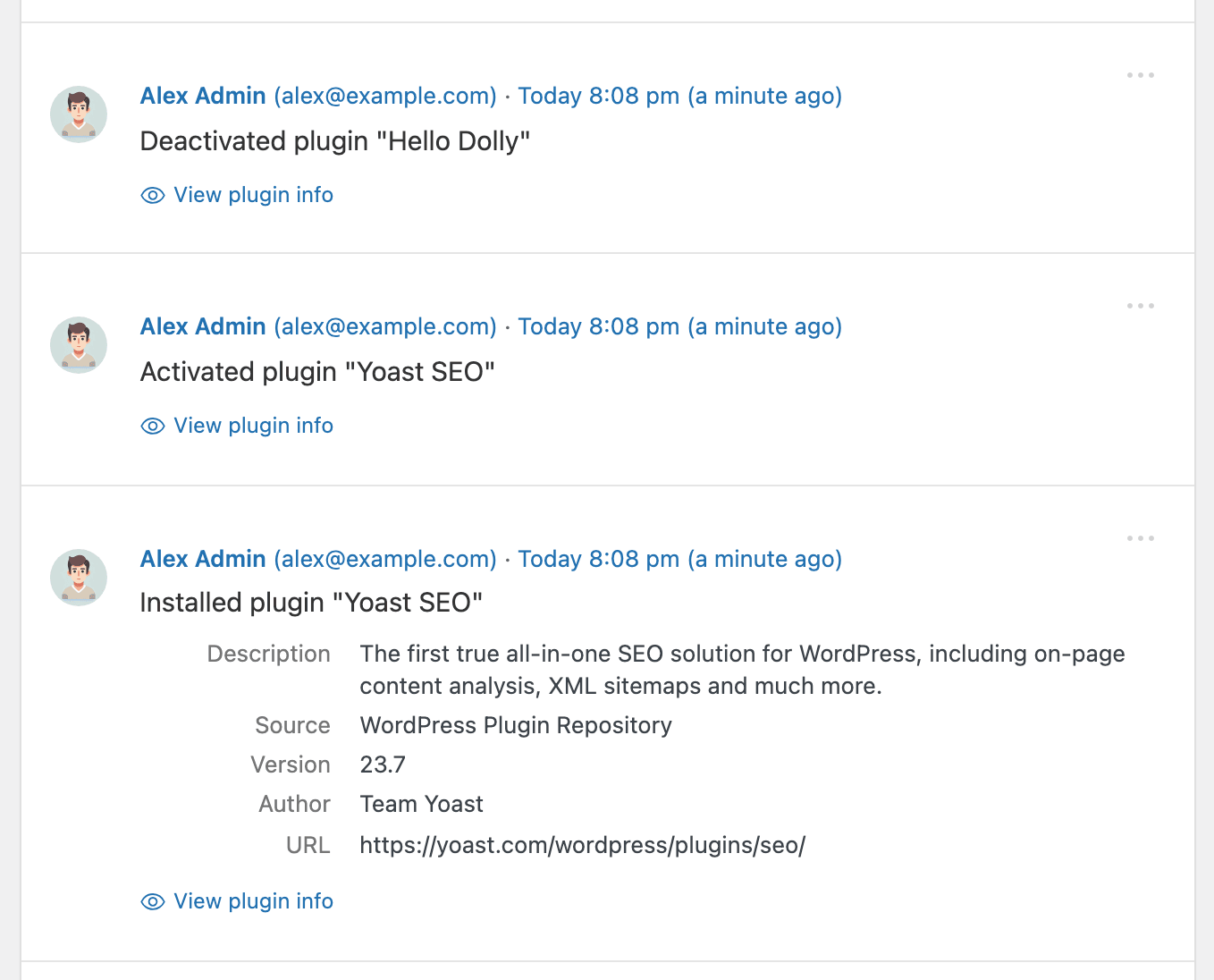
每次外掛安裝、啟用及停用都會記錄作者、版本、來源及外掛連結,讓您隨時掌握網站上正在執行的項目。
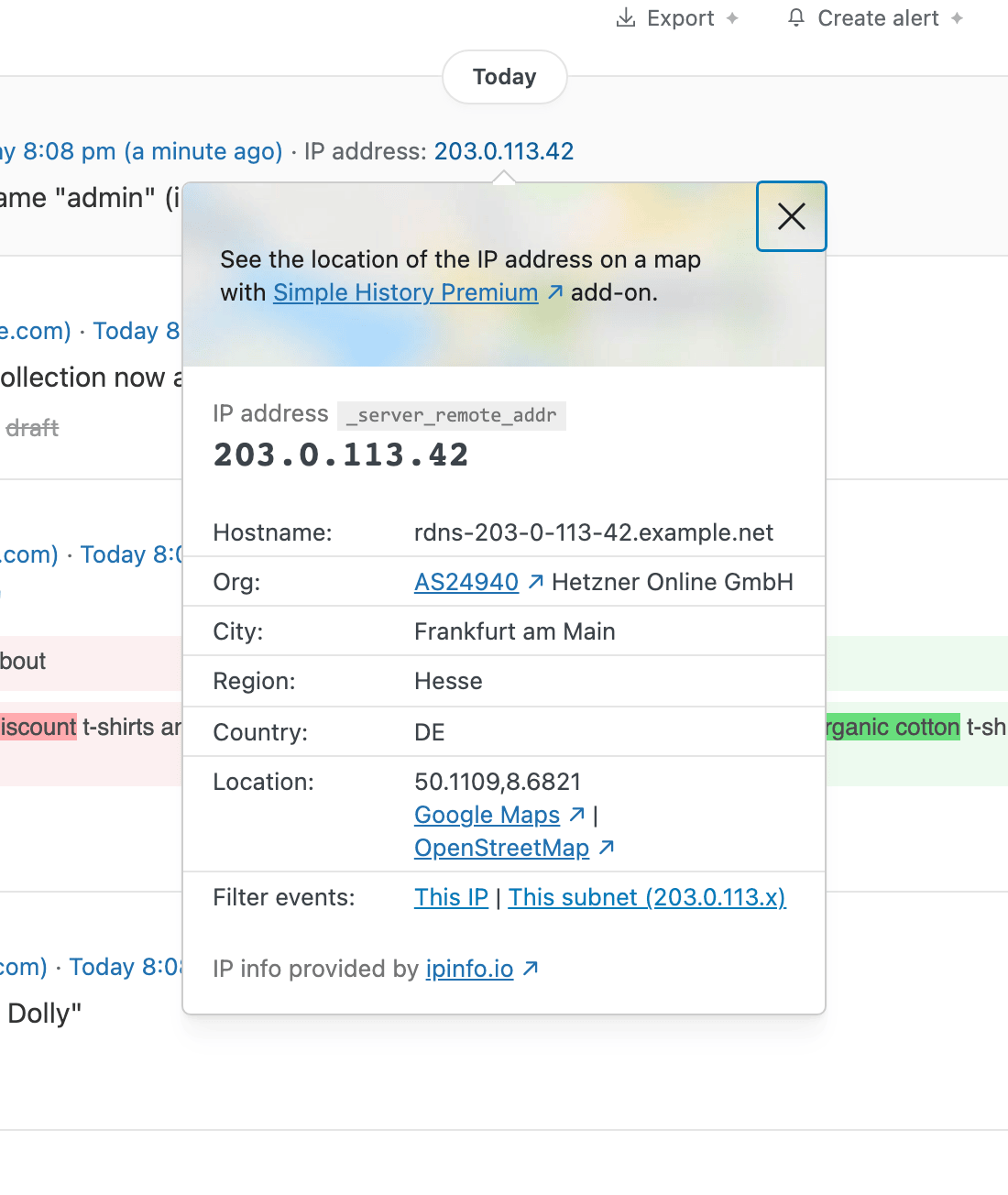
按一下任何 IP 位址即可查看其來源,包括主機名稱、組織、城市及國家/地區;再按一下即可篩選來自該 IP 或子網路的所有事件。非常適合用來調查登入失敗。
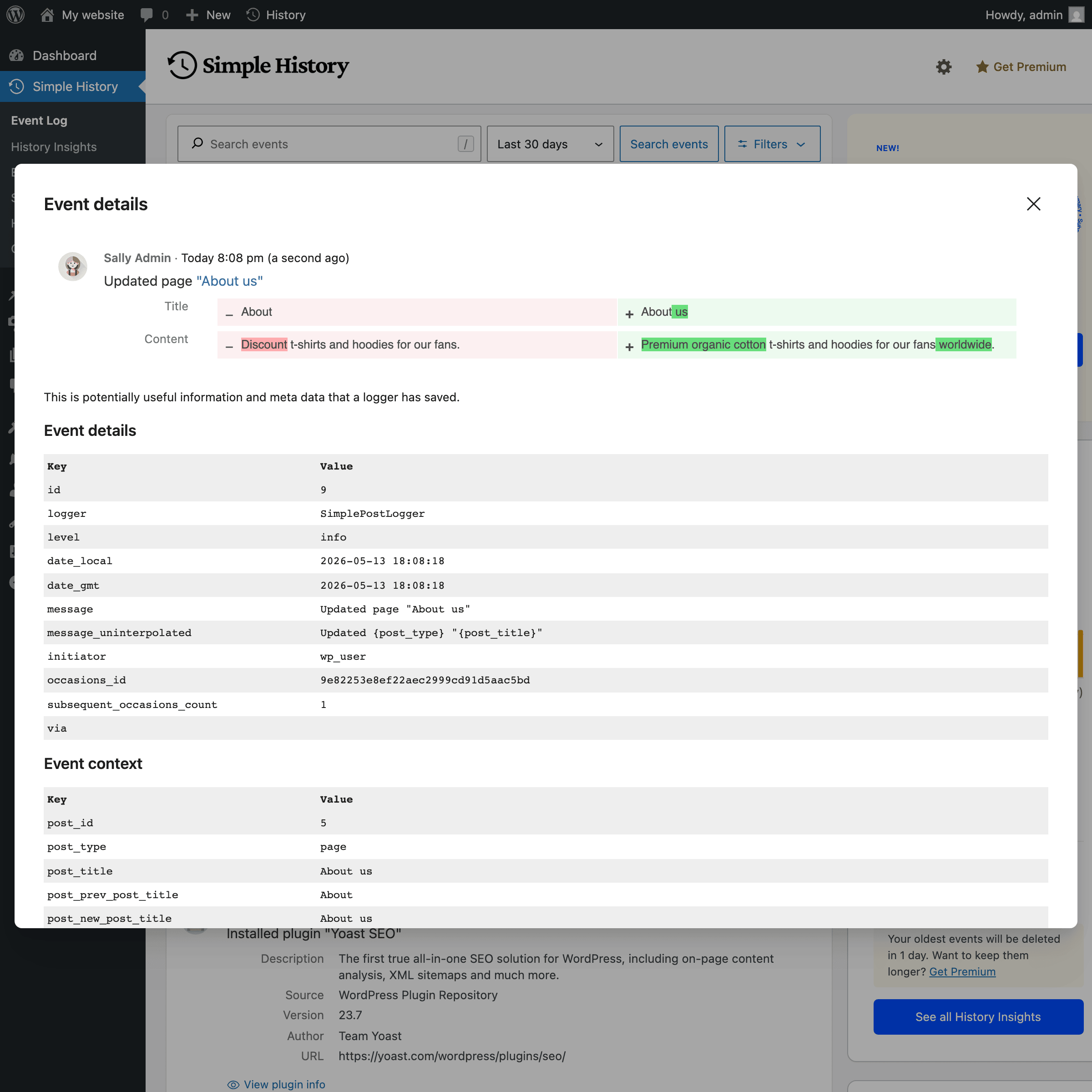
開啟任何事件,即可查看 Simple History 儲存的完整詳細資料,包括文章 ID、使用者 ID、變更前後的值及所有其他欄位,掌握每筆項目的完整稽核軌跡。
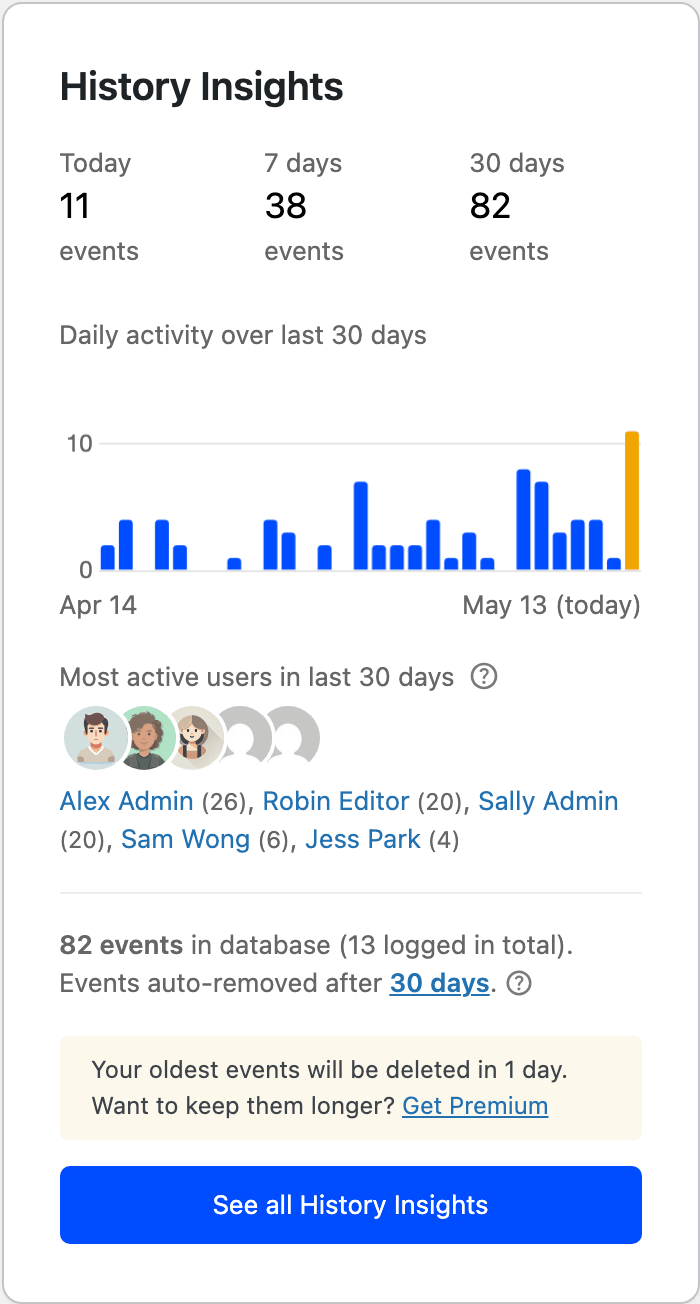
活動記錄洞察會在活動記錄旁顯示每日活動圖表、今天/本週/本月的事件數量,以及最活躍的使用者。
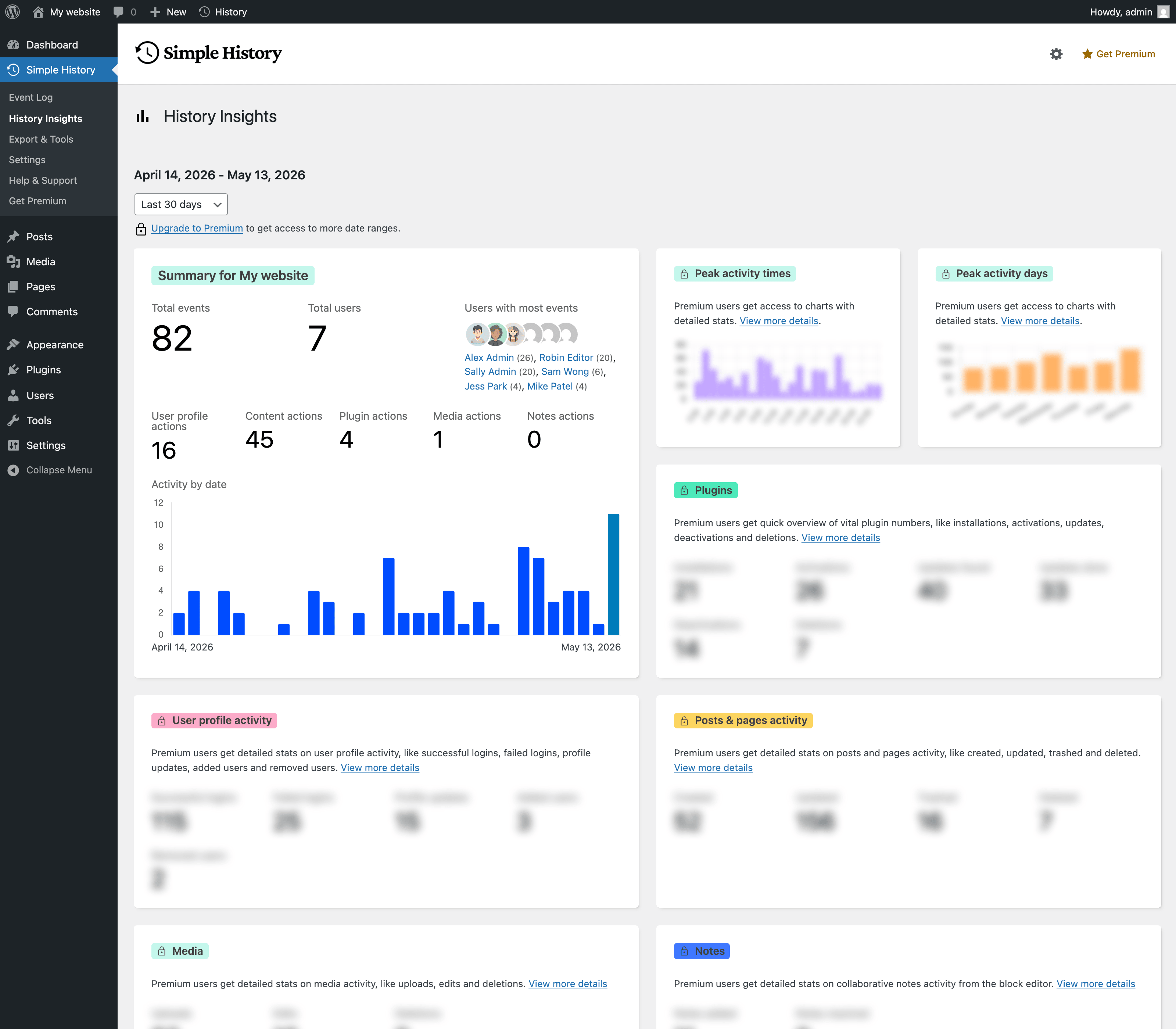
「統計與摘要」是功能完整的報告控制台,可依您選擇的任何日期範圍,提供使用者、文章與頁面、外掛、媒體等項目的明細。
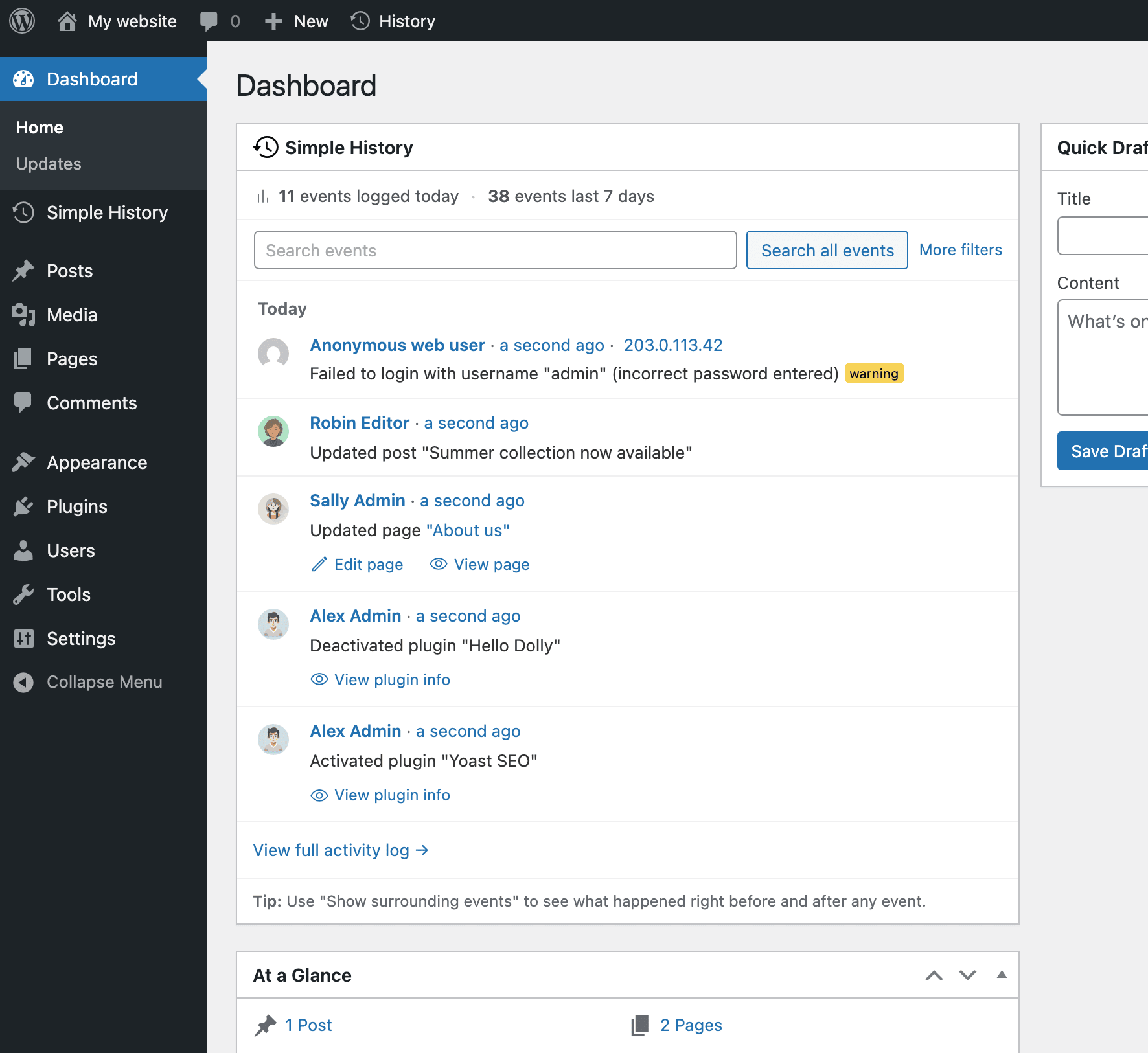
控制台小工具:直接在 WordPress 控制台上精簡呈現近期活動,讓您不必離開每天查看的頁面,就能掌握網站動態。
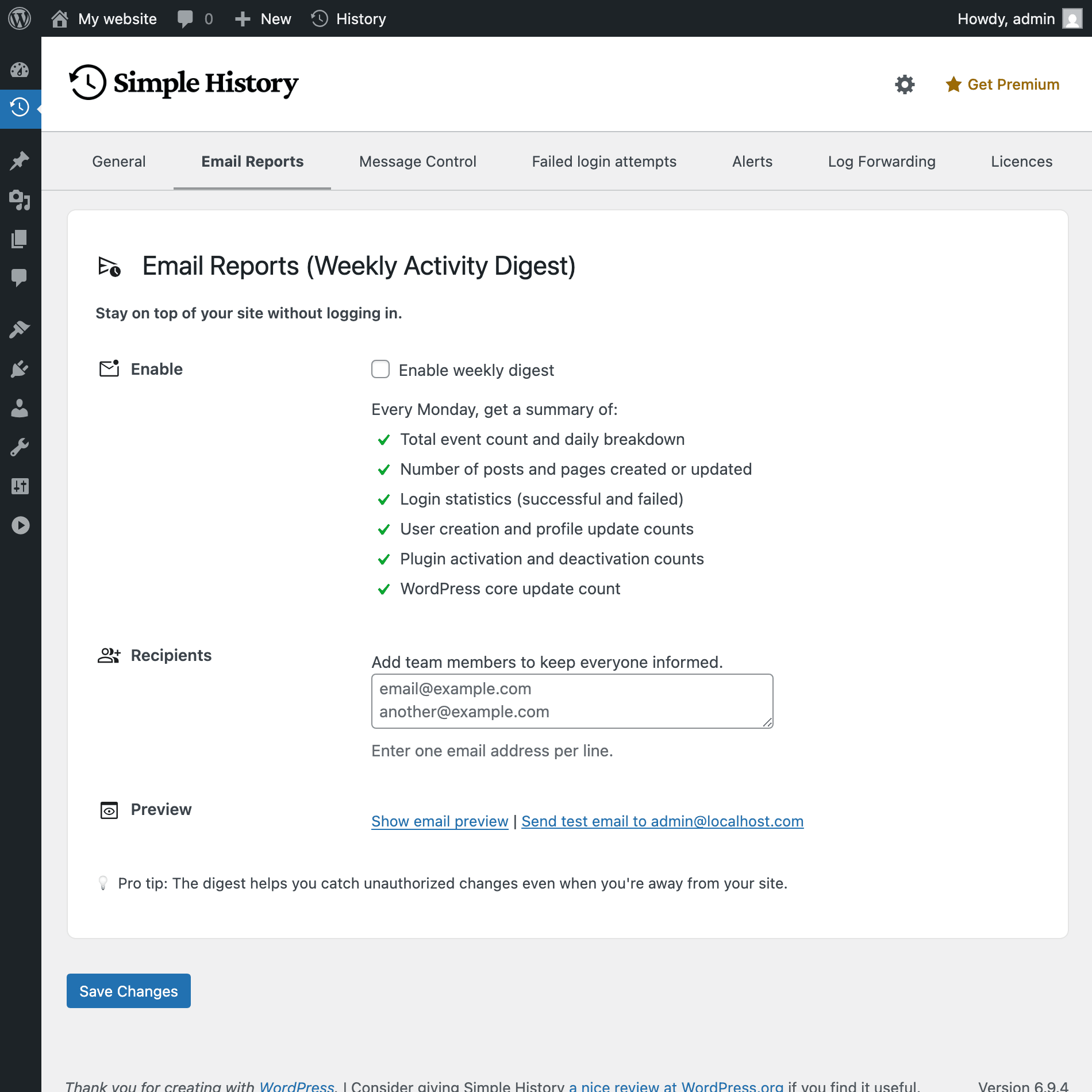
每週電子郵件報告讓您不必登入也能掌握近況。您可以在設定頁面選擇收件者、預覽內容或傳送測試郵件。
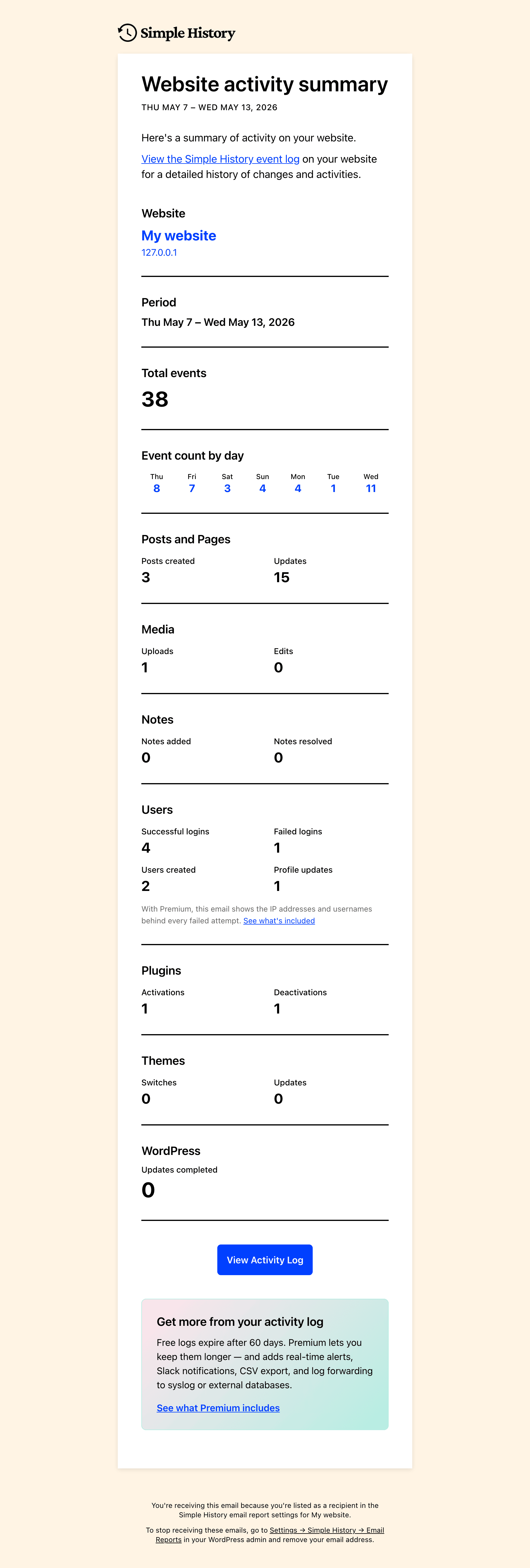
每週摘要本身會清楚彙整文章、使用者、登入、外掛變更等內容,並直接寄到您的收件匣。
常見問題集
這個外掛免費嗎?
是的!Simple History 已免費提供超過 10 年,未來也會繼續免費。若要支持開發並解鎖額外功能,您可以購買 Premium 附加元件。查看 Premium 功能。
如何查看活動記錄?
您可以透過多種方式查看活動記錄:
- 提供活動統計摘要的控制台小工具
- WordPress 後台中的專用活動記錄頁面
- 管理工具列上的快速檢視下拉式選單
- WordPress 命令面板 – 輸入「Simple History」,即可前往目前文章的活動記錄
可以!您可以在外掛設定中自訂選單位置。可選擇將 Simple History 顯示在主選單頂端或底部,或放在控制台選單或工具選單內。
使用這個外掛需要具備程式設計技能嗎?
不需要!只要安裝並啟用外掛,系統就會自動開始收集活動記錄。
活動記錄儲存在哪裡?
活動記錄儲存在您的 WordPress 資料庫中。
可以匯出活動記錄嗎?
可以,您可以將活動記錄匯出為 CSV 或 JSON 格式,以便進一步分析。
與其他外掛相容嗎?
是的!Simple History 不需額外設定即可支援許多熱門外掛。此外,開發者也可以使用 Logging API,將任何外掛與 Simple History 整合。
Simple History 會記錄 WordPress AI 外掛嗎?
是的。啟用官方 WordPress AI 外掛後,Simple History 會記錄 AI 功能的開啟或關閉、功能所用的 AI 供應商或模型變更,以及外掛或佈景主題在「連接器核准」畫面中要求、取得或失去 AI 供應商存取權的事件。
系統絕不記錄 API 金鑰、AI 提示詞或回應內容,這些資料仍保留在 AI 外掛本身的設定中。
這個外掛會拖慢我的網站嗎?
不會,Simple History 輕量且經過效能最佳化。大多數記錄作業都發生在 WordPress 使用者執行操作時的後台區域。
預設不會在前台記錄任何內容,確保不影響訪客的使用效能。
誰可以查看活動記錄?
活動記錄的存取權取決於使用者角色:
- 網站管理員可以查看所有已記錄的事件。
- 編輯可以查看與文章及頁面相關的事件。
可以排除特定使用者,不記錄他們的活動嗎?
可以,您可以依角色或電子郵件地址,使用
simple_history/log/do_log篩選器排除使用者。如需詳細資訊,請參閱 Hook 說明文件。
活動記錄會保留多久?
記錄預設會保留 30 天。在 5.25.0 版之前安裝 Simple History 的網站則會保留 60 天。
升級至 Simple History Premium,即可透過圖形介面變更保留天數。
可以追蹤特定使用者所做的變更嗎?
可以!您可以依使用者名稱篩選活動記錄,輕鬆追蹤個別使用者的活動。
這個外掛符合 GDPR 規範嗎?
是否符合 GDPR 規範,取決於您如何使用此外掛以及如何處理收集的資料。WordPress 規範禁止外掛聲稱符合特定法律規範,因此您應檢視網站的資料政策,確認是否符合規範。
What Simple History does by default:
- ❌ Loads no Google Fonts
- ❌ Sets no cookies
- ❌ Keeps no data in the browser’s local storage
- ✅ Masks IP addresses: the last part is removed before storing (192.168.1.x; IPv6 addresses keep only the first half)
- ✅ Looks up an IP address at ipinfo.io only when an administrator clicks it
The log can contain personal data (called personal information in some laws), such as usernames, email addresses and masked IP addresses. A masked IP address can still be linked to a person through the rest of the log entry. Which privacy laws apply, and what they require, depends on your site, so mention the activity log in your privacy policy. Simple History adds suggested text for this under Settings Privacy Policy Guide.
如需詳細資訊,請參閱支援頁面:GDPR 與隱私權:您的資料如何儲存在 Simple History 中。
使用者評論


參與者及開發者


變更記錄
✨ If you find Simple History useful ✨
- Sponsor the plugin to keep it free.
- Add a 5-star review so other users know it’s good.
- Get the premium add-on for more features.
Experimental entries are gated behind the experimental features setting (Settings Simple History Experimental). Enable it to try them, then share feedback so we know what to ship for everyone.
5.35.0 (October 2026)
This release is about logins and privacy. Logins with two-factor authentication are logged when the code is accepted, IP addresses in the log are only shown to administrators, and there is suggested text about the log for your privacy policy. The weekly email settings got simpler too.
Read more about it in the release post
Added
- Suggested privacy policy text for the activity log, under Settings Privacy Policy Guide.
- Support for the Two Factor plugin: logins are logged when the two-factor code is accepted, not when the password is entered, and show whether two-factor authentication was used.
- Logins on sites using Wordfence show whether two-factor authentication was used, and how: authenticator app, recovery code, passkey or remembered device.
- Experimental — Emails that WordPress fails to send are logged as errors, and a notice in the sidebar and email settings shows how many failed in the last 30 days.
- Experimental — WP-CLI events store the command, the server user and, for commands run over SSH, the masked IP address they came from. Nothing is shown in the log yet.
Changed
- Weekly email settings have a “Site admin” checkbox that sends the email to the site’s admin address and follows it when it changes, and adding more recipients no longer stops the email to the admin.
- IP addresses in the log are shown only to administrators. Editors and other roles that can read the log no longer see them in events, event details, exports or search. The secret RSS feed still shows them.
- IP addresses are described as masked instead of anonymized, since a masked address can still be linked to a person through the rest of the log entry.
- XML export events say what was exported (all content or a post type) and show the author, category, date and status filters used, also for past exports.
- Experimental — Role logger: removing capabilities from a role is a notice instead of a warning, and granting a capability that controls the site (such as
manage_optionsorinstall_plugins), or creating a role with one, is now a warning.
Fixed
- The IP address of people who comment is now masked like every other IP address in the log, and only administrators can see it. Earlier comment events keep the full address but are hidden from other roles.
- Core files check no longer reports official WordPress files in the site’s language or in English as modified, such as a German
wp-config-sample.phpon a site installed in English. - Image changes in event details, such as a new featured image, line up with the text changes above them.
- Event details are easier to read on phones: each label sits above its value, and image thumbnails fit inside their column.
- Wrong two-factor codes from the Two Factor, Kadence Security (formerly Solid Security) and Wordfence plugins are logged as failed logins.
5.34.0 (September 2026)
Too many events in your log to get an overview? The new compact view may come in handy then. And Premium users get an even more compact view with the new table view, for digging into your events. There is also a new button that hides the sidebar, to give you full focus on the log with less distraction. Read more about this and more in the release post .
Added
- Table view for research and debugging sessions: sort, filter, compare two events side by side, and export (Premium).
- “Hide sidebar” button next to the view switcher, so the event log can use the full width of the page. Each view remembers its own choice: the table view starts without the sidebar, the detailed and compact views with it.
- Events can now be sorted by date, id, level, logger or event type through the REST API (
orderbyandorder) and on the command line (wp simple-history event list --orderby=id --order=asc). - Events can be counted instead of listed through the REST API (
/events/aggregate), grouped by date, level, logger or initiator. The same filters apply, so it counts exactly what the list would have shown. - Thumbnail on “Edited attachment” events, so you can see which image the event is about.
- Links on tips in the sidebar and dashboard widget, pointing to the documentation or feature page for what the tip describes.
Changed
- The compact event log view is no longer experimental. The Detailed/Compact switch is now available to everyone from the event log page.
- Custom field changes on posts name the fields that changed instead of only counting them.
- Custom field and term changes on posts are included in event details from the REST API and WP-CLI.
- New installs get a notice a few days before their oldest events are cleared out for the first time. It explains why, mentions that you can export your log, and stays until you close it.
Fixed
- Sorting the event log oldest first now works.
order=ascwas accepted and then ignored on the default event listing, which returned newest first anyway. - The “new events” count above the log now respects your filters. With “Hide my own events” on, or event types hidden, it counted events the list would never show — so it could announce new activity and then show you nothing when you clicked it.
- Changed post excerpts are labelled “Excerpt” instead of the raw field name.
- Custom field changes made in the block editor’s meta boxes, like the Custom Fields panel, are now logged.
- Empty custom fields that some plugins create when a post is first saved are no longer listed as added.
- Internal keys from Advanced Custom Fields no longer clutter the list of changed custom fields.
- Tips that mention Premium are hidden on sites that have turned promotional messages off.
- Image thumbnails on media events name the image for screen reader users.
- Weekly email with no recipients set was never sent. It now goes to the site admin email until you add recipients, and the settings page tells you so.
- Test email is sent to the weekly email’s recipients instead of to you, and the button says who that is.
- Experimental — Role and capability changes a plugin makes on its own, such as after an update, are credited to WordPress instead of whoever was logged in, and name the plugin that made them.
Security
- Database errors from the event log no longer include the database’s own error message in the API response. Reading the log needs a lower capability than most things in WordPress, and a MySQL error names tables and columns.
5.33.0 (September 2026)
The weekly email is redesigned. It opens with a summary of your week, and every number links to its events. Events by WordPress and visitors are no longer credited to the logged-in admin, and Redirection logging works again with Redirection 5.10. And some minor fixes here and there.
Read more about it in the release post
Added
- Weekly email can now be turned on with one click from the welcome notice, the welcome log entry and the log sidebar (yup, we really like the weekly email, and we think you will too!).
- Experimental: Compact view for the event log, which fits more events on the screen.
Changed
- Weekly email design updated:
- wider layout, section icons, clickable numbers linking to matching events, shorter captions and a single “Nothing to report” line for empty sections.
- now includes a plain-text version, so it’s less likely to end up in spam.
- opens with a short summary of the week: event count, change from last week, failed logins and most active user.
- …and closes with a tip.
- WordPress, WP-CLI, anonymous user and “other” cards link to their events for all users.
- Repeated edits of the same Simple History setting are grouped into one row.
- “Similar events” link is now an expand/collapse control that keeps keyboard focus.
- Event details line up with the event text, and long labels wrap instead of pushing values off-screen.
Fixed
- Redirection plugin events are logged again with Redirection 5.10.0 and later.
- Events by WordPress or visitors (update checks, failed logins, scheduled tasks) are no longer attributed to the logged-in administrator.
- Event log loads its first page faster (fixed debounce effect).
- Loading placeholders and the date dropdown no longer shift while the log loads.
- Admin bar quick view shows a message when events can’t be loaded.
Security
- Redirection events can no longer be added to the log by users without permission to manage redirects.
5.32.0 (September 2026)
Expandable diffs, a “View revision” link that opens the exact revision a change created, and a fix for failed application password logins flooding the log.
Read more about it in the release post
Added
- Long diffs can be expanded in place with an “Expand diff” button.
- Note events carry the same action links as the page or post the note belongs to.
- Experimental — “Hide events of this type” in an event’s actions menu removes that event type from the current list. Hidden types show as removable chips above the list and never change what gets logged.
Changed
- Post and page events link to the revision the change created, labelled “View revision”. On WordPress 7.1 and later it opens the editor’s visual revision view.
- Site icon changes show the old and new icon as images, side by side, instead of attachment IDs.
- Action links below events are grey until the event is hovered or focused, and separated by a dot in the dashboard widget.
- When a license key has reached its activation limit, the settings page explains why and how to free it up from the Lemon Squeezy “My orders” page.
- Experimental — Event fields sent to AI tools through the WordPress Abilities API carry readable labels and descriptions, following the output schema conventions added in WordPress 7.1.
Fixed
- Relative times (“2 minutes ago”) could be off by the site’s UTC offset.
- “Copy event message” and “Copy as Markdown” copied the site’s time instead of the time shown in the log.
- Content diffs use the same green and red as WordPress core’s revision screen. Some events used a different set.
- “Edited your profile” events no longer appear when nothing changed. The block editor saves editor preferences to your user record, and each save was logged as a profile edit.
- Notes inside a block (WordPress 7.1) no longer show a literal
- Reaction emoji no longer show as broken images when the site’s emoji image host is unreachable.
- Failed application password logins are throttled, grouped, filtered and counted like other failed logins. A brute-force attack against the REST API could previously flood the log.
- Featured image changes on posts no longer show raw “thumb_id” and “thumb_title” rows, show “None” on the empty side, load small thumbnails, and are included in the structured event details.
- Uploading a zip over an installed theme or plugin is logged as an update, downgrade or reinstall, instead of as a new install.
Security
- Misc security hardening.
5.31.0 (August 2026)
🎨 Site Editor changes are now logged — templates, template parts, site-wide styles, patterns, navigation menus and fonts. This release also adds support for the official WordPress AI plugin, so you can see which plugins and themes have been granted access to which AI providers, plus a round of security hardening and the usual fixes.
Read more about all changes in the release post
Added
- Site Editor changes are now logged: templates, template parts, site-wide styles, patterns, navigation menus and fonts, including changes made outside the block editor. Resetting a template to the theme default is logged as a reset, not a deletion.
- Support for the official WordPress AI plugin: Simple History now logs when AI features are enabled or disabled, when a feature’s AI provider or model is changed, and when plugins or themes request, are granted, or lose access to AI providers on the Connector Approvals screen. API keys and AI prompt content are never stored in the log.
--format=jsonand--format=yamlonwp simple-history info, so a deploy or CI script can check that Premium is active and licensed.- Experimental — Activity log is now available to AI tools and automation through the WordPress Abilities API (WordPress 6.9+). Read-only — nothing exposed can change or delete log entries.
Changed
- Tested on WordPress 7.1.
- Theme update events now name the version the theme went from and to, the way plugin update events already did.
- Experimental — Role events no longer list every capability in the details panel when there are more than 10; the count stays in the event message and the full list in the event context.
Fixed
- “Deleted user” events showed a blank id, email and login instead of the details of the removed user.
- Personal data export requests were logged whatever their status, not only when newly requested.
wp simple-history infonever showed the license line on sites with Premium active.- Event counts are now grouped for your locale — “187 304 events” rather than “187304 events” — in the log header, the stats bar, pagination and grouped-event counts.
- Backfill notice showed a stray
- “Today” and “Yesterday” date dividers, and the “Today” label on each event, switched over at UTC midnight instead of your own midnight, so recent events could show the wrong day.
- Welcome notice shown after install no longer appears on the history page it links to, so its “Take a look” link always goes somewhere.
- Log now shows the real reason it failed to load instead of “Unknown error” — on most sites every error detail was being discarded before it reached the screen.
- Database errors while loading the log now name the problem, so you can act on it or pass it to your host.
Security
- Comment content is escaped before it reaches the event details panel, so a comment can no longer put markup into the log.
- RSS feed no longer breaks when logged content contains the
]]>character sequence, which anyone able to leave a comment could trigger. - Colour values from the theme customizer are validated before being drawn as a swatch, so a theme with a permissive colour setting cannot inject CSS into the log.
- CSV exports treat tab and carriage return as formula triggers, alongside the
=,+,-and@already covered. - Additional escaping and input validation across the options, theme and media loggers.
- Referring URL stored with every event now has secret-looking query string values masked, the way Detective Mode already masked the URLs it stores.
- Masking now also covers session, bearer, credentials and private key field names.
5.30.0 (August 2026)
👍 Two experimental features graduate in this release: event reactions and the header status bar, which shows the status of your current settings at a glance — how long history is kept, whether email reports and alerts are on, and where logs are forwarded. This release also includes a round of security hardening and some miscellaneous fixes.
Read more about all changes in the release post
Added
- “Plugin info” action link on plugin update-available events, so you can quickly check what an unfamiliar plugin is without leaving the log.
- “Find events from the same IP address” in an event’s actions menu, alongside the existing user and event-type filters.
- Changes to more Simple History settings are now logged: Email Reports, the Experimental features toggle, and add-on license keys (key values are never stored in the log). (And yes – it was a bit funny that the plugin that logs changes to other plugins didn’t log its own settings changes!)
- WP-CLI:
--metadata_searchand--ai_onlyoptions onwp simple-history list, matching the metadata search and AI filter in the GUI. - WP-CLI: AI attribution columns (
ai_agent,ai_detected_via,ai_application) onwp simple-history list, showing which AI tool made a change and how it was detected. - Header now shows “Stealth mode: on” while stealth mode is hiding Simple History from other users, including other administrators.
Changed
- Reactions graduated from experimental and are now on by default — react to events with a 👍 (disable in Settings General). Premium adds ❤️ 🎉 🚀 and more reaction types.
- Header settings/info bar is graduated from experimental and now shows for all admins — a glance at how long history is kept, whether email reports and alerts are on, and where logs are forwarded, with each one linking straight to its setting.
- Checkbox settings now show as On/Off (instead of 1/0) in the “Modified settings” log details.
- Settings changes are now detected across all save mechanisms (Settings API, direct option updates, and REST) and recorded as a single event.
- Large or structured settings are now logged as “changed” without storing their full value, keeping the log readable.
- Developers:
simple_history/user_can_clear_lognow defaults to whether the user can manage settings, instead of always allowing it. The “Clear log” button is unaffected for administrators. - Exporting the log as HTML is faster on sites with large activity logs.
Deprecated
- WP-CLI:
wp simple-history event search— usewp simple-history event list --search=instead. The old command still works but will be removed in a future version.
Fixed
- WP-CLI:
wp simple-history event searchalways returned zero results. - WP-CLI:
--fieldsonwp simple-history listignored column names written with a space after the comma. - PHP 8 fatal error when a setting was changed by a request without a referrer, such as from the REST API or WP-CLI. #649
- Untranslatable strings in the statistics view and the weekly email report. #672
- Invalid date or month filter values now return a clear error (HTTP 400 in the REST API, a friendly message in WP-CLI) instead of a server error.
- RSS feed no longer breaks when its address contains a date filter it can’t read — for example an older feed URL saved in a feed reader. It now returns an empty feed instead of an error.
- Removed an unnecessary database query on every admin page load (a leftover from the one-time history backfill check).
- Dashboard widget now shows an error message with details when the log can’t be loaded (for example when the REST API is blocked), instead of loading placeholders forever.
- Fatal error on WordPress 6.3 when saving a post that creates a revision.
- Post update events now link to the revision they created. (The link had been missing since the feature was added in 5.16.0!)
- PHP warning when logging a comment whose post has been deleted. Such events now read “a comment to (deleted)” instead of showing an empty title.
- “Filter events: This IP” in the IP address popover did nothing when used from the dashboard widget — it now opens the event log filtered to that address.
- Filtering by IP address now finds events by any address recorded for them, not just the one the web server saw. On sites behind a proxy or load balancer the visitor’s real address is read from a forwarding header, and filtering by it previously returned nothing.
- Experimental — Failed XML-RPC logins no longer create a duplicate “failed application password” entry alongside the regular failed-login entry.
Security
- Looking up a person’s username, email address and roles from the user card now follows WordPress’s own rule and requires permission to list users. Who performed an event is still shown to everyone who can read that event.
- REST API endpoints now require the same permission as opening the history page.
- Detective Mode masks more field names — passwords, tokens, secrets and card numbers — and now also covers nested values, query strings and command line arguments.
- Clearing the log, exporting it and regenerating the RSS feed address now also require permission to manage settings.
- Event text escaping is now consistent across the media, categories, user and comments loggers, and in exported HTML files.
See CHANGELOG.md for the full changelog.