


Even if you have a fiber internet plan, you might notice that sometimes your smart home devices lag, your video calls stutter, and ping times spike unpredictably while sitting just two rooms away from your router. This is because we blindly trust modern consumer routers running on default auto settings to intelligently manage the invisible radio waves filling our homes. But if you pull out a free Wi-Fi analyzer app, scan the local airspace, and discover a shocking reality: your home network isn't operating in a private vacuum. It's crammed onto a single 2.4GHz or 5GHz channel alongside a dozen neighboring routers stepping on each other's packets.
Default router settings are a recipe for wireless congestion. With a Wi-Fi analyzer app, you can map local airwave pollution and manually switch to a clean channel. You can instantly eliminate packet collisions and/or latency without spending a dime on hardware upgrades.
Co-channel interference might be the culprit
Busy residential areas can suffer from channel congestion







You might not notice, but your wireless channels could be very congested, especially if you live in an apartment building or very dense housing. This is because the 2.4GHz spectrum can be very overcrowded. In the 2.4GHz band, there are only three non-overlapping channels: 1, 6, and 11.
If you live in an apartment complex or closely packed suburban neighborhood, automatic channel selection algorithms can often force multiple routers onto the same frequency block. This means that your devices are essentially competing on the same channels as all your neighbors.
You can also suffer from co-channel interference, which is sometimes referred to as CCI. Unlike physical walls that block signals, routers operating on the same channel don't just interfere; they actually have to take turns talking. This means your router pauses its transmissions while waiting for your neighbor's router to finish talking on the exact same frequency, which can introduce massive latency spikes.
Multiply this by potentially hundreds of different devices in your apartment building, and it's no wonder that your internet just doesn't seem as fast as what you're paying your ISP for.
A Wi-Fi analyzer app can provide you with so much information
Be sure to scan different areas of your home

By using a Wi-Fi analyzer app, you can run a wireless site survey, and it can reveal a lot of information about your network and home environment. I chose Wi-Fi Analyzer by olgor.com, available on the Google Play Store. I preferred using the app on my phone so I could actually walk around my house and check where the signal changed. Depending on the device you're using, there are many Wi-Fi analyzer apps and tools, some of which are open source.
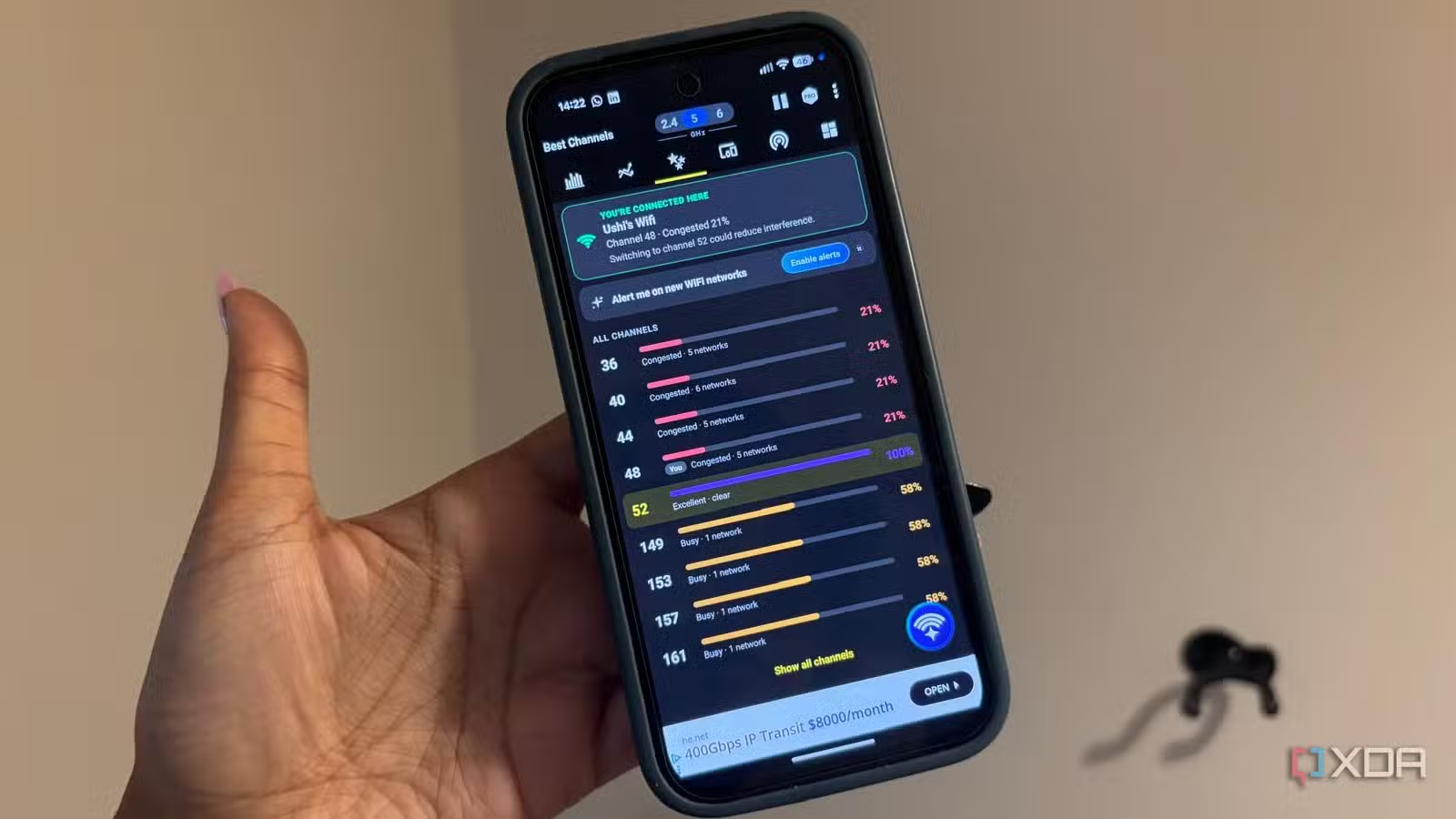
It generated real-time channel graphs that show every SSID broadcasting within range, mapped against their specific frequency widths and signal strengths (also known as RSSI). This allowed me to see what other networks, if any, were interfering with my network.
It also gave me a full list of all the channels being used in my area, along with how congested each channel was, so I could optimize my network based on this information. The Wi-Fi analysis showed that my current 5 GHz channel, channel 48, was experiencing significant congestion. Several other access points were detected on or overlapping this frequency, which made sense given the stuttering and slowdowns I was seeing.
This information might allow you to spot the culprits. Sometimes your smart home hubs, cheap IoT devices, or even your day-to-day tech might all be jammed onto the same channel, leaving adjacent channels underutilized. It might make sense for you to swap some things around.
How to move your network over to cleaner air
These changes can make a major difference

The best fix for all of these issues is to actually move your network to cleaner air, and that will allow you to reclaim your wireless performance.
Based on the information in your Wi-Fi Analyzer app, make sure you're selecting the right channel. Hardcoding your router to 1, 6, or 11 based on which channel has the lowest signal overlap from neighbors might be best, and you should completely ignore intermediate channels like 2, 3, 4, or 5, which can cause catastrophic crosstalk. The exact settings you change and adjust, and the exact channels that you choose, will be dependent on what's going on within your network.
Another great step could be to optimize 5GHz and 6GHz widths. Moving beyond 2.4GHz might be the best play, especially in congested areas. This will allow you to evaluate wider 80 MHz or 160 MHz channels on the 5GHz/6GHz bands, ensuring you aren't stepping on any dynamic frequency selection channels or heavy radar bands if you live near airports or weather stations.
Unfortunately, this can be an ongoing process of wireless maintenance, especially if you have neighbors that keep moving. Channel optimization isn't a set-it-and-forget-it task forever. If a new neighbor moves in and fires up a powerful new mesh router, your clean channel might become crowded again months down the line. It's worth auditing frequently if you're noticing some congestion.
If you are planning to migrate to the 5GHz channel, then be sure that all of your devices are compatible, particularly IoT devices too. Locking down legacy 2.4GHz channels can break older smart home gear that stubbornly refuses to connect to anything other than legacy widths.
You don't always need a new router
Your issue might not even be hardware-related
Sometimes the resolution to a network problem isn't going out and spending hundreds of dollars on a fancy new mesh router. Sometimes the bottleneck isn't hardware-related at all. It's actually the invisible traffic jam happening right on your assigned radio frequency. You can download a free Wi-Fi analyzer tool today and look at what channel your neighborhood is camping on, then log into your router's admin panel and move your network to greener pastures.