Note
Access to this page requires authorization. You can try signing in or changing directories.
Access to this page requires authorization. You can try changing directories.
Use the When a new email arrives (V3) trigger to create a cloud flow that runs when one or more of the following email properties match criteria that you provide.
| Property | When to use |
|---|---|
| Folder | Trigger a cloud flow whenever emails arrive in a specific folder. This property can be useful if you have rules that route emails to different folders. |
| To | Trigger a cloud flow based on the address to which an email was sent. This property can be useful if you receive email that was sent to different email addresses in the same inbox. |
| CC | Trigger a cloud flow based on the CC address to which an email was sent. This property can be useful if you receive email that was sent to different email addresses in the same inbox. |
| From | Trigger a cloud flow based on the sender's email address. |
| Importance | Trigger a cloud flow based on the importance with which emails were sent. Emails can be sent with high, normal, or low importance. |
| Has Attachment | Trigger a cloud flow based on the presence of attachments in incoming emails. |
| Subject Filter | Search for the presence of specific words in the subject of an email. Your flow then runs actions that are based on the results of your search. |
Important
Each Power Automate plan includes a run quota. Always check properties in the flow's trigger when possible. Doing so avoids using your run quota unnecessarily. If you check a property in a condition, each run counts against your plan's run quota, even if the filter condition that you defined isn't met. For example, if you check an email's From address in a condition, each run counts against your plan's run quota, even if it's not from the address that interests you.
In the following tutorials, we check all properties in the when a new email arrives (V3) trigger. Learn more in frequently asked billing questions and in pricing.
Prerequisites
An account with access to Power Automate.
An email account with Outlook for Microsoft 365 or Outlook.com.
Connections to Office, Outlook, and Microsoft Teams.
Trigger a cloud flow based on an email's subject
In this tutorial, you create a cloud flow that sends a Teams message if the subject of any new email has the word "lottery" in it. Your flow then marks any such email as read.
Although this tutorial sends a Teams message, you can similarly use any other action that suits your workflow needs. For example, you might store the email contents in another repository such as Google Sheets or a Microsoft Excel workbook stored on Dropbox.
Sign in to Power Automate.
On the left pane, select My flows.
Select New flow > Automated cloud flow.
In the Flow name field, enter a name for your flow.
In the Choose your flow's trigger field, enter new email.
Select When a new email arrives (V3) from the list of triggers. This trigger runs each time an email arrives.
Select Create. The designer opens with the When a new email arrives (V3) trigger added to your flow.
Open the When a new email arrives (V3) trigger. Set the connection for the Microsoft Outlook connector, as needed.
Under Folder, select the folder that you'd like the flow to monitor for incoming emails.
Power Automate allows you to use either the new designer or the classic designer to configure your cloud flow. The steps are similar in both designers. Learn more (with examples) in Identify differences between the new designer and the classic designer.
Ask Copilot to help finish creating your flow by typing the following prompt:
"When I receive an email, if the email contains the word 'lottery' in the subject, send me a Teams message about it and mark the email as Read."
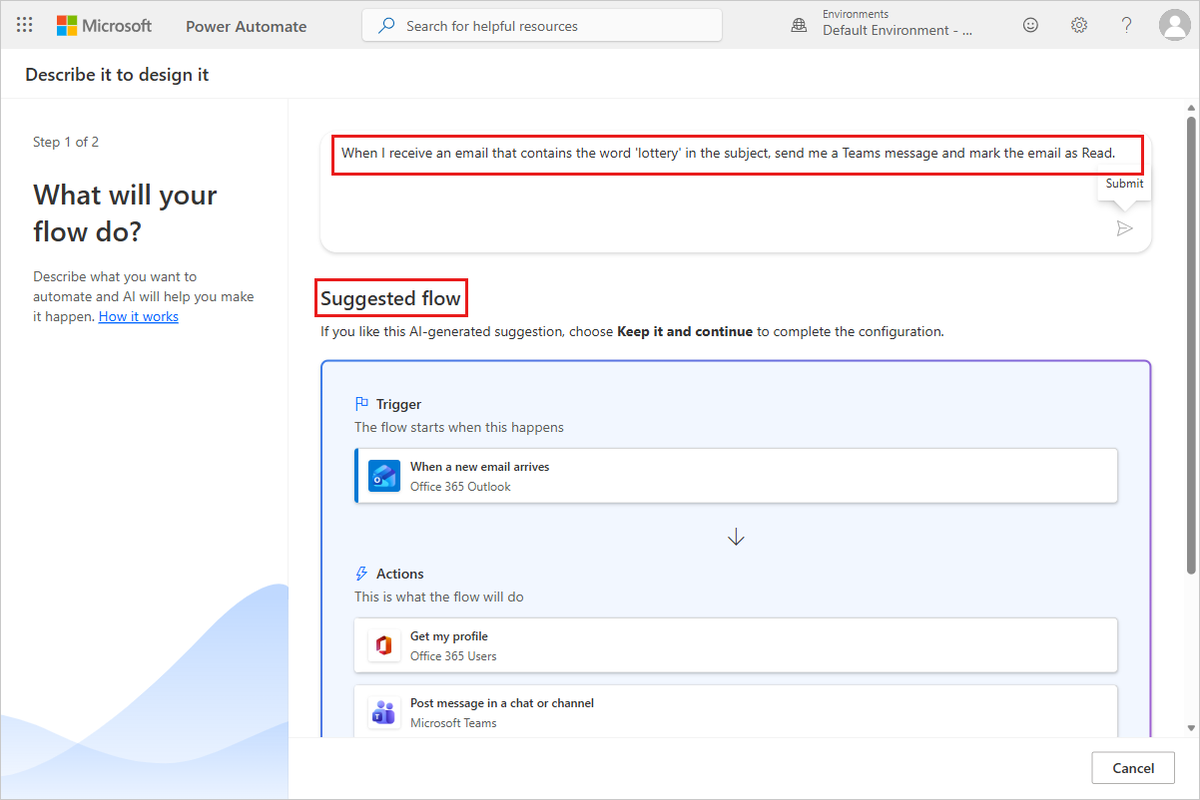
Copilot generates a proposed flow based on your prompt.
Review the connections and parameters on the designer.
Revise, as needed, using the Copilot chat and the designer interface.
When you are done, select Save.

Trigger a cloud flow based on an email's sender
In this tutorial, you create a cloud flow that sends a Teams message if any new email arrives from a specific sender (email address). The flow also marks any such email as Read.
Ask Copilot to create your flow by typing the following prompt:
"When I receive an email from jake@contoso.com, send me a Teams message and mark the email as Read."

Review the connections and parameters on the designer.
Save the flow.
Trigger a cloud flow when emails arrive in a specific folder
If you have rules that route emails to different folders based on certain properties, such as the address, you might want this type of flow.
Note
If you don't already have a rule that routes email to a folder other than your inbox, create such a rule and confirm it works by sending a test email.
Ask Copilot to create your flow by typing a request, such as:
"When I receive an email in Sync Issues folder, send me a Teams message and mark the email as Read."

Ensure the email trigger folder is selected. Copilot usually selects the folder, but if it doesn't, select it yourself.
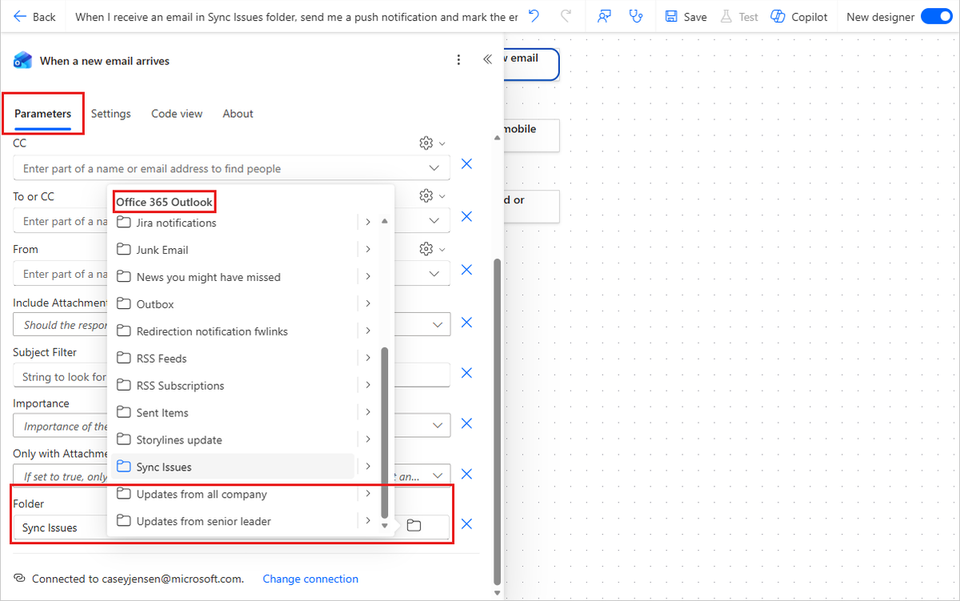
Save your flow. Your automation starts running.
Test your flow by sending an email to the folder you specified.