Copy and transform data in Microsoft Fabric Lakehouse using Azure Data Factory or Azure Synapse Analytics
APPLIES TO:
Azure Data Factory
Azure Synapse Analytics
Tip
Data Factory in Microsoft Fabric is the next generation of Azure Data Factory, with a simpler architecture, built-in AI, and new features. If you're new to data integration, start with Fabric Data Factory. Existing ADF workloads can upgrade to Fabric to access new capabilities across data science, real-time analytics, and reporting.
Microsoft Fabric Lakehouse is a data architecture platform for storing, managing, and analyzing structured and unstructured data in a single location. In order to achieve seamless data access across all compute engines in Microsoft Fabric, go to Lakehouse and Delta Tables to learn more. By default, data is written to Lakehouse Table in V-Order, and you can go to Delta Lake table optimization and V-Order for more information.
This article outlines how to use Copy activity to copy data from and to Microsoft Fabric Lakehouse and use Data Flow to transform data in Microsoft Fabric Lakehouse. To learn more, read the introductory article for Azure Data Factory or Azure Synapse Analytics.
① Azure integration runtime ② Self-hosted integration runtime
This connector supports connecting to Microsoft Fabric Lakehouse in the workspace with a private link enabled. You can set up and use a private link in Microsoft Fabric by referring to this article.
To support workspace-level private link in the self-hosted integration runtime (version 5.58.9377.1 or above), you need to add *.dfs.fabric.microsoft.com to the allowlist to ensure Microsoft Fabric Lakehouse connector can access Onelake APIs through the network.
Get started
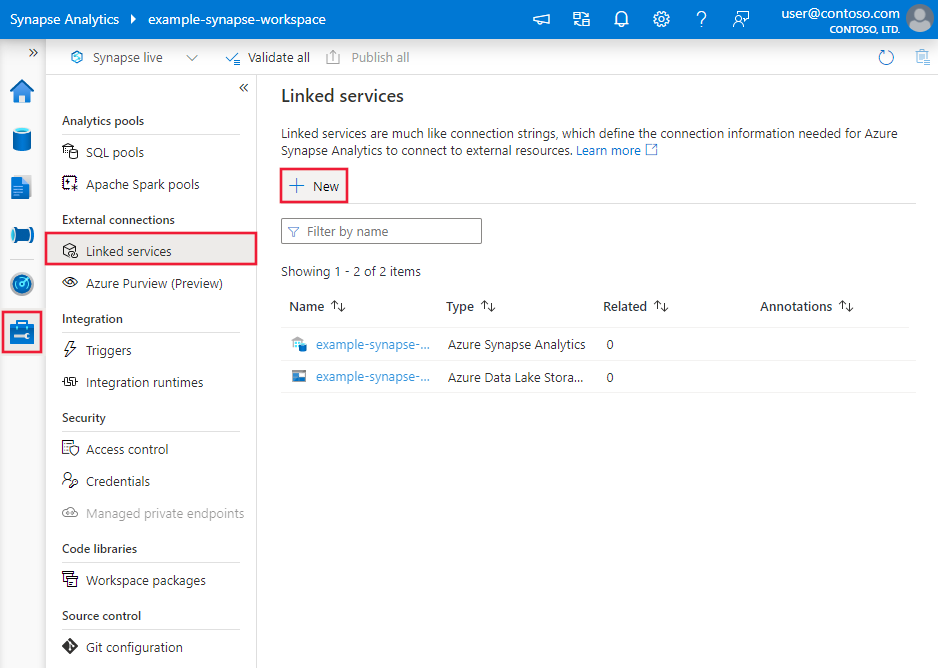
To perform the copy activity with a pipeline, you can use one of the following tools or SDKs:
These properties are supported for the linked service:
Property
Description
Required
type
The type property must be set to Lakehouse.
Yes
workspaceId
The Microsoft Fabric workspace ID.
Yes
artifactId
The Microsoft Fabric Lakehouse object ID.
Yes
tenant
Specify the tenant information (domain name or tenant ID) under which your application resides. Retrieve it by hovering the mouse in the upper-right corner of the Azure portal.
Yes
servicePrincipalId
Specify the application's client ID.
Yes
servicePrincipalCredentialType
The credential type to use for service principal authentication. Allowed values are ServicePrincipalKey and ServicePrincipalCert.
Yes
servicePrincipalCredential
The service principal credential. When you use ServicePrincipalKey as the credential type, specify the application's client secret value. Mark this field as SecureString to store it securely, or reference a secret stored in Azure Key Vault. When you use ServicePrincipalCert as the credential, reference a certificate in Azure Key Vault, and ensure the certificate content type is PKCS #12.
Yes
connectVia
The integration runtime to be used to connect to the data store. You can use the Azure integration runtime or a self-hosted integration runtime if your data store is in a private network. If not specified, the default Azure integration runtime is used.
No
Example: using service principal key authentication
You can also store service principal key in Azure Key Vault.
A data factory or Synapse pipeline can be associated with a system-assigned managed identity for Azure resources, which represents that resource for authentication to other Azure services. You can directly use this system-assigned managed identity for Microsoft Fabric Lakehouse authentication, which is similar to using your own service principal. It allows this designated resource to access and copy data from or to Microsoft Fabric Lakehouse. To learn more about managed identities for Azure resources, see Managed identities for Azure resources.
To use managed identities for Azure resource authentication, follow these steps:
These properties are supported for a Microsoft Fabric Lakehouse linked service:
Property
Description
Required
type
The type property must be set to Lakehouse.
Yes
workspaceId
The Microsoft Fabric workspace ID.
Yes
artifactId
The Microsoft Fabric Lakehouse object ID.
Yes
connectVia
The integration runtime to be used to connect to the data store. You can use the Azure integration runtime or a self-hosted integration runtime if your data store is in a private network. If not specified, the default Azure integration runtime is used.
This authentication type is not supported on the self-hosted integration runtime.
User-assigned managed identity authentication
A data factory can be assigned with one or multiple user-assigned managed identities. You can use this user-assigned managed identity for Microsoft Fabric Lakehouse authentication, which allows to access and copy data from or to Microsoft Fabric Lakehouse. To learn more about managed identities for Azure resources, see Managed identities for Azure resources
To use user-assigned managed identity authentication, follow these steps:
Assign one or multiple user-assigned managed identities to your data factory and create credentials for each user-assigned managed identity.
These properties are supported for a Microsoft Fabric Lakehouse linked service:
Property
Description
Required
type
The type property must be set to Lakehouse.
Yes
workspaceId
The Microsoft Fabric workspace ID.
Yes
artifactId
The Microsoft Fabric Lakehouse object ID.
Yes
credentials
Specify the user-assigned managed identity as the credential object.
Yes
connectVia
The integration runtime to be used to connect to the data store. You can use the Azure integration runtime or the self-hosted integration runtime (if your data store is in a private network). If this property isn't specified, the service uses the default Azure integration runtime.
You need to grant the service principal/system-assigned managed identity/user-assigned managed identity at least the Contributor role in Microsoft Fabric workspace. Follow these steps:
Go to your Microsoft Fabric workspace, select Manage access on the top bar. Then select Add people or groups.
In Add people pane, enter your service principal/system-assigned managed identity/user-assigned managed identity name, and select it from the drop-down list.
Specify the role as Contributor or higher (Admin, Member), then select Add.
Your service principal/system-assigned managed identity/user-assigned managed is displayed on Manage access pane.
Dataset properties
Microsoft Fabric Lakehouse connector supports two types of datasets, which are Microsoft Fabric Lakehouse Files dataset
and Microsoft Fabric Lakehouse Table dataset. See the corresponding sections for details.
The copy activity properties for Microsoft Fabric Lakehouse Files dataset and Microsoft Fabric Lakehouse Table dataset are different. See the corresponding sections for details.
To use Microsoft Fabric Lakehouse Files dataset type as a source or sink in Copy activity, go to the following sections for the detailed configurations.
Microsoft Fabric Lakehouse Files as a source type
Microsoft Fabric Lakehouse connector supports the following file formats. Refer to each article for format-based settings.
You have several options to copy data from Microsoft Fabric Lakehouse using the Microsoft Fabric Lakehouse Files dataset:
Copy from the given path specified in the dataset.
Wildcard filter against folder path or file name, see wildcardFolderPath and wildcardFileName.
Copy the files defined in a given text file as file set, see fileListPath.
The following properties are under storeSettings settings in format-based copy source when using Microsoft Fabric Lakehouse Files dataset:
Property
Description
Required
type
The type property under storeSettings must be set to LakehouseReadSettings.
Yes
Locate the files to copy:
OPTION 1: static path
Copy from the folder/file path specified in the dataset. If you want to copy all files from a folder, additionally specify wildcardFileName as *.
OPTION 2: wildcard - wildcardFolderPath
The folder path with wildcard characters to filter source folders. Allowed wildcards are: * (matches zero or more characters) and ? (matches zero or single character); use ^ to escape if your actual folder name has wildcard or this escape char inside. See more examples in Folder and file filter examples.
No
OPTION 2: wildcard - wildcardFileName
The file name with wildcard characters under the given folderPath/wildcardFolderPath to filter source files. Allowed wildcards are: * (matches zero or more characters) and ? (matches zero or single character); use ^ to escape if your actual file name has wildcard or this escape char inside. See more examples in Folder and file filter examples.
Yes
OPTION 3: a list of files - fileListPath
Indicates to copy a given file set. Point to a text file that includes a list of files you want to copy, one file per line, which is the relative path to the path configured in the dataset. When using this option, don't specify file name in dataset. See more examples in File list examples.
No
Additional settings:
recursive
Indicates whether the data is read recursively from the subfolders or only from the specified folder. When recursive is set to true and the sink is a file-based store, an empty folder or subfolder isn't copied or created at the sink. Allowed values are true (default) and false. This property doesn't apply when you configure fileListPath.
No
deleteFilesAfterCompletion
Indicates whether the binary files will be deleted from source store after successfully moving to the destination store. The file deletion is per file, so when copy activity fails, you see some files have already been copied to the destination and deleted from source, while others are still remaining on source store. This property is only valid in binary files copy scenario. The default value: false.
No
modifiedDatetimeStart
Files filter based on the attribute: Last Modified. The files will be selected if their last modified time is greater than or equal to modifiedDatetimeStart and less than modifiedDatetimeEnd. The time is applied to UTC time zone in the format of "2018-12-01T05:00:00Z". The properties can be NULL, which means no file attribute filter is applied to the dataset. When modifiedDatetimeStart has datetime value but modifiedDatetimeEnd is NULL, it means the files whose last modified attribute is greater than or equal with the datetime value will be selected. When modifiedDatetimeEnd has datetime value but modifiedDatetimeStart is NULL, it means the files whose last modified attribute is less than the datetime value will be selected. This property doesn't apply when you configure fileListPath.
No
modifiedDatetimeEnd
Same as above.
No
enablePartitionDiscovery
For files that are partitioned, specify whether to parse the partitions from the file path and add them as another source columns. Allowed values are false (default) and true.
No
partitionRootPath
When partition discovery is enabled, specify the absolute root path in order to read partitioned folders as data columns.
If it isn't specified, by default, - When you use file path in dataset or list of files on source, partition root path is the path configured in dataset. - When you use wildcard folder filter, partition root path is the subpath before the first wildcard.
For example, assuming you configure the path in dataset as "root/folder/year=2020/month=08/day=27": - If you specify partition root path as "root/folder/year=2020", copy activity generates two more columns month and day with value "08" and "27" respectively, in addition to the columns inside the files. - If partition root path isn't specified, no extra column is generated.
No
maxConcurrentConnections
The upper limit of concurrent connections established to the data store during the activity run. Specify a value only when you want to limit concurrent connections.
The following properties are under storeSettings settings in format-based copy sink when using Microsoft Fabric Lakehouse Files dataset:
Property
Description
Required
type
The type property under storeSettings must be set to LakehouseWriteSettings.
Yes
copyBehavior
Defines the copy behavior when the source is files from a file-based data store.
Allowed values are: - PreserveHierarchy (default): Preserves the file hierarchy in the target folder. The relative path of the source file to the source folder is identical to the relative path of the target file to the target folder. - FlattenHierarchy: All files from the source folder are in the first level of the target folder. The target files have autogenerated names. - MergeFiles: Merges all files from the source folder to one file. If the file name is specified, the merged file name is the specified name. Otherwise, it's an autogenerated file name.
No
blockSizeInMB
Specify the block size in MB used to write data to Microsoft Fabric Lakehouse. Learn more about Block Blobs. Allowed value is between 4 MB and 100 MB. By default, ADF automatically determines the block size based on your source store type and data. For nonbinary copy into Microsoft Fabric Lakehouse, the default block size is 100 MB so as to fit in at most approximately 4.75-TB data. It might be not optimal when your data isn't large, especially when you use Self-hosted Integration Runtime with poor network resulting in operation timeout or performance issue. You can explicitly specify a block size, while ensure blockSizeInMB*50000 is large enough to store the data, otherwise copy activity run fails.
No
maxConcurrentConnections
The upper limit of concurrent connections established to the data store during the activity run. Specify a value only when you want to limit concurrent connections.
No
metadata
Set custom metadata when copy to sink. Each object under the metadata array represents an extra column. The name defines the metadata key name, and the value indicates the data value of that key. If preserve attributes feature is used, the specified metadata will union/overwrite with the source file metadata.
Allowed data values are: - $$LASTMODIFIED: a reserved variable indicates to store the source files' last modified time. Apply to file-based source with binary format only. - Expression - Static value
In copy activity source: - File list path: Metadata/FileListToCopy.txt
The file list path points to a text file in the same data store that includes a list of files you want to copy, one file per line with the relative path to the path configured in the dataset.
Some recursive and copyBehavior examples
This section describes the resulting behavior of the copy operation for different combinations of recursive and copyBehavior values.
recursive
copyBehavior
Source folder structure
Resulting target
true
preserveHierarchy
Folder1 File1 File2 Subfolder1 File3 File4 File5
The target Folder1 is created with the same structure as the source:
Folder1 File1 File2 Subfolder1 File3 File4 File5
true
flattenHierarchy
Folder1 File1 File2 Subfolder1 File3 File4 File5
The target Folder1 is created with the following structure:
Folder1 autogenerated name for File1 autogenerated name for File2 autogenerated name for File3 autogenerated name for File4 autogenerated name for File5
true
mergeFiles
Folder1 File1 File2 Subfolder1 File3 File4 File5
The target Folder1 is created with the following structure:
Folder1 File1 + File2 + File3 + File4 + File5 contents are merged into one file with an autogenerated file name.
false
preserveHierarchy
Folder1 File1 File2 Subfolder1 File3 File4 File5
The target Folder1 is created with the following structure:
Folder1 File1 File2
Subfolder1 with File3, File4, and File5 isn't picked up.
false
flattenHierarchy
Folder1 File1 File2 Subfolder1 File3 File4 File5
The target Folder1 is created with the following structure:
Folder1 autogenerated name for File1 autogenerated name for File2
Subfolder1 with File3, File4, and File5 isn't picked up.
false
mergeFiles
Folder1 File1 File2 Subfolder1 File3 File4 File5
The target Folder1 is created with the following structure:
Folder1 File1 + File2 contents are merged into one file with an autogenerated file name. autogenerated name for File1
Subfolder1 with File3, File4, and File5 isn't picked up.
Microsoft Fabric Lakehouse Table in Copy activity
To use Microsoft Fabric Lakehouse Table dataset as a source or sink dataset in Copy activity, go to the following sections for the detailed configurations.
Microsoft Fabric Lakehouse Table as a source type
To copy data from Microsoft Fabric Lakehouse using Microsoft Fabric Lakehouse Table dataset, set the type property in the Copy activity source to LakehouseTableSource. The following properties are supported in the Copy activity source section:
Property
Description
Required
type
The type property of the Copy Activity source must be set to LakehouseTableSource.
To copy data to Microsoft Fabric Lakehouse using Microsoft Fabric Lakehouse Table dataset, set the type property in the Copy Activity sink to LakehouseTableSink. The following properties are supported in the Copy activity sink section:
Property
Description
Required
type
The type property of the Copy Activity source must be set to LakehouseTableSink.
Data type mapping for Microsoft Fabric Lakehouse table
When copying data from Microsoft Fabric Lakehouse table, the following mappings are used from Microsoft Fabric Lakehouse table data types to interim data types used by the service internally. See Schema and data type mappings to learn about how copy activity maps the source schema and data type to the sink.
Microsoft Fabric Lakehouse table data type
Interim service data type
string
String
long
Int64
integer
Int32
short
Int16
byte
SByte
float
Single
double
Double
decimal
Decimal
boolean
Boolean
binary
Byte array
date
Date
timestamp
DateTime
When copying data to Microsoft Fabric Lakehouse table, the following mappings are used from interim data types used by the service internally to supported delta sink data types.
Interim service data type
Supported delta sink type
Boolean
boolean
SByte
byte
Byte
short
Int16
short
UInt16
integer
Int32
integer
UInt32
long
Int64
long
UInt64
decimal (20,0)
Single
float
Double
double
GUID
string
Date
date
TimeSpan
Not supported
DateTime
timestamp
DateTimeOffset
timestamp
String
string
Byte array
binary
Decimal
decimal
Delta Lake table support
In the sections below, you will find detailed information on Delta Lake table support for both the source and sink.
Source
Delta column mapping is supported when you apply reader version 2 or reader version 3 with columnMapping in readerFeatures in your Microsoft Fabric Lakehouse Table.
Delta table's column mapping capability allows for more flexible schema evolution, ensuring that changes in table structure do not disrupt data workflows. With column mapping, you can read data from an existing delta Lake table with delta.columnMapping.mode set to name or id.
Deletion vectors is supported
when you apply reader version 3 with deletionVectors in readerFeatures in your Microsoft Fabric Lakehouse Table. Rows that are soft deleted are marked in deletion vector files and skipped when reading the delta lake table.
Delta column mapping is supported. This capability allows for more flexible schema evolution, ensuring that changes in table structure do not disrupt data workflows. With column mapping, you can:
Write data to an existing delta lake table with delta.columnMapping.mode set to name.
Auto-create a table with delta.columnMapping.mode set to name when the sink table does not exist and the source columns include special characters and whitespaces.
Auto-create a table with delta.columnMapping.mode set to name when the table action is overwrite and the source dataset columns include special characters and whitespaces.
When transforming data in mapping data flow, you can read and write to files or tables in Microsoft Fabric Lakehouse. See the corresponding sections for details.
Microsoft Fabric Lakehouse Files in mapping data flow
To use Microsoft Fabric Lakehouse Files dataset as a source or sink dataset in mapping data flow, go to the following sections for the detailed configurations.
Note
Mapping data flows currently support service principal authentication only.
Microsoft Fabric Lakehouse Files as a source or sink type
Microsoft Fabric Lakehouse connector supports the following file formats. Refer to each article for format-based settings.
To use Fabric Lakehouse file-based connector in inline dataset type, you need to choose the right Inline dataset type for your data. You can use DelimitedText, Avro, JSON, ORC, or Parquet depending on your data format.
Microsoft Fabric Lakehouse Table in mapping data flow
To use Microsoft Fabric Lakehouse Table dataset as a source or sink dataset in mapping data flow, go to the following sections for the detailed configurations.
Microsoft Fabric Lakehouse Table as a source type
There are no configurable properties under source options.
Note
CDC support for Lakehouse table source is currently not available.
Microsoft Fabric Lakehouse Table as a sink type
The following properties are supported in the Mapping Data Flows sink section:
Name
Description
Required
Allowed values
Data flow script property
Update method
When you select "Allow insert" alone or when you write to a new delta table, the target receives all incoming rows regardless of the Row policies set. If your data contains rows of other Row policies, they need to be excluded using a preceding Filter transform.
When all Update methods are selected a Merge is performed, where rows are inserted/deleted/upserted/updated as per the Row Policies set using a preceding Alter Row transform.
yes
true or false
insertable deletable upsertable updateable
Optimized Write
Achieve higher throughput for write operation via optimizing internal shuffle in Spark executors. As a result, you might notice fewer partitions and files that are of a larger size
no
true or false
optimizedWrite: true
Auto Compact
After any write operation has completed, Spark will automatically execute the OPTIMIZE command to reorganize the data, resulting in more partitions if necessary, for better reading performance in the future
no
true or false
autoCompact: true
Merge Schema
Merge schema option allows schema evolution, that is, any columns that are present in the current incoming stream but not in the target Delta table is automatically added to its schema. This option is supported across all update methods.
no
true or false
mergeSchema: true
Example: Microsoft Fabric Lakehouse Table sink
sink(allowSchemaDrift: true,
    validateSchema: false,
    input(
        CustomerID as string,
        NameStyle as string,
        Title as string,
        FirstName as string,
        MiddleName as string,
        LastName as string,
        Suffix as string,
        CompanyName as string,
        SalesPerson as string,
        EmailAddress as string,
        Phone as string,
        PasswordHash as string,
        PasswordSalt as string,
        rowguid as string,
        ModifiedDate as string
    ),
    deletable:false,
    insertable:true,
    updateable:false,
    upsertable:false,
    optimizedWrite: true,
    mergeSchema: true,
    autoCompact: true,
    skipDuplicateMapInputs: true,
    skipDuplicateMapOutputs: true) ~> CustomerTable
For Fabric Lakehouse table-based connector in inline dataset type, you only need to use Delta as dataset type. This will allow you to read and write data from Fabric Lakehouse tables.
The following table depicts the behavior of Mapping Data Flows when interacting with Fabric Lakehouse tables, based on whether the Lakehouse is schema-enabled or schema-less, and whether a schema is explicitly defined.
Note: All scenarios are supported when selecting the table name using the dropdown.
Fabric Lakehouse Type
Role
Schema Provided
Behavior
Schema-less Lakehouse
Source
Yes
Operation fails
Source
No
Operation succeeds
Sink
Yes
Operation fails or may result in unexpected behavior
Sink
No
Operation succeeds
Schema-enabled Lakehouse
Source
Yes
Operation succeeds
Source
No
Operation fails
Sink
Yes
Operation succeeds
Sink
No
Operation fails or may result in unexpected behavior
Lookup activity properties
To learn details about the properties, check Lookup activity.
 Azure Data Factory