Copy data from and to Microsoft Access using Azure Data Factory or Synapse Analytics
APPLIES TO:
Azure Data Factory
Azure Synapse Analytics
Tip
Data Factory in Microsoft Fabric is the next generation of Azure Data Factory, with a simpler architecture, built-in AI, and new features. If you're new to data integration, start with Fabric Data Factory. Existing ADF workloads can upgrade to Fabric to access new capabilities across data science, real-time analytics, and reporting.
This article outlines how to use the Copy Activity in Azure Data Factory and Synapse Analytics pipelines to copy data from a Microsoft Access data store. It builds on the copy activity overview article that presents a general overview of copy activity.
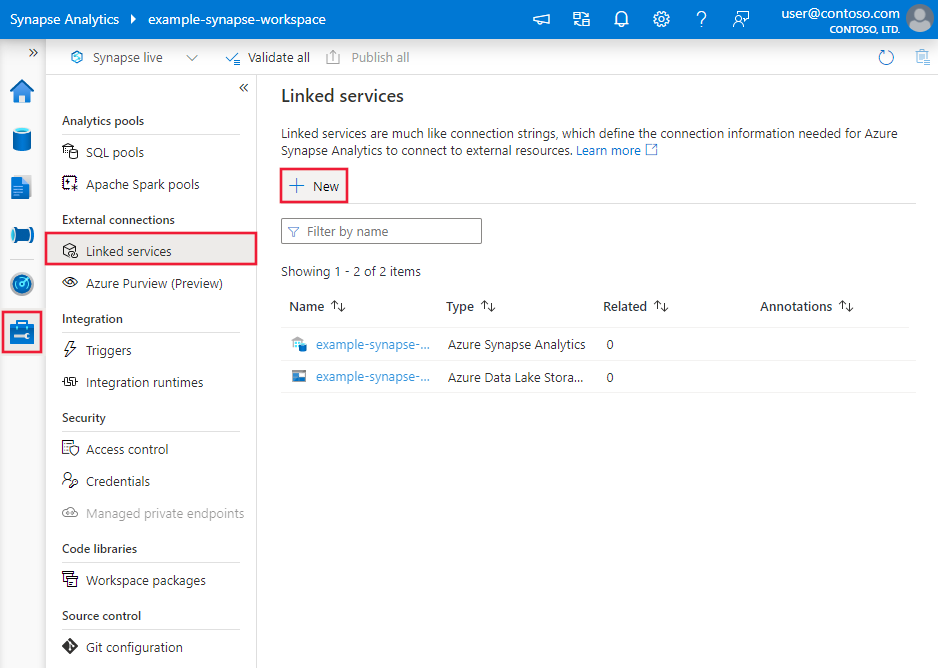
Search for Access and select the Microsoft Access connector.
Configure the service details, test the connection, and create the new linked service.
Connector configuration details
The following sections provide details about properties that are used to define Data Factory entities specific to Microsoft Access connector.
Linked service properties
The following properties are supported for Microsoft Access linked service:
Property
Description
Required
type
The type property must be set to: MicrosoftAccess
Yes
connectionString
The ODBC connection string excluding the credential portion. You can specify the connection string or use the system DSN (Data Source Name) you set up on the Integration Runtime machine (you need still specify the credential portion in linked service accordingly). You can also put a password in Azure Key Vault and pull the password configuration out of the connection string. Refer to Store credentials in Azure Key Vault with more details.
Yes
authenticationType
Type of authentication used to connect to the Microsoft Access data store. Allowed values are: Basic and Anonymous.
Yes
userName
Specify user name if you're using Basic authentication.
For a full list of sections and properties available for defining datasets, see the datasets article. This section provides a list of properties supported by Microsoft Access dataset.
To copy data from Microsoft Access, the following properties are supported:
Property
Description
Required
type
The type property of the dataset must be set to: MicrosoftAccessTable
Yes
tableName
Name of the table in the Microsoft Access.
No for source (if "query" in activity source is specified); Yes for sink
For a full list of sections and properties available for defining activities, see the Pipelines article. This section provides a list of properties supported by Microsoft Access source.
Microsoft Access as source
To copy data from Microsoft Access, the following properties are supported in the copy activity source section:
Property
Description
Required
type
The type property of the copy activity source must be set to: MicrosoftAccessSource
Yes
query
Use the custom query to read data. For example: "SELECT * FROM MyTable".
To copy data to Microsoft Access, the following properties are supported in the copy activity sink section:
Property
Description
Required
type
The type property of the copy activity sink must be set to: MicrosoftAccessSink
Yes
writeBatchTimeout
Wait time for the batch insert operation to complete before it times out. Allowed values are: timespan. Example: “00:30:00” (30 minutes).
No
writeBatchSize
Inserts data into the SQL table when the buffer size reaches writeBatchSize. Allowed values are: integer (number of rows).
No (default is 0 - auto detected)
preCopyScript
Specify a SQL query for Copy Activity to execute before writing data into data store in each run. You can use this property to clean up the pre-loaded data.
No
maxConcurrentConnections
The upper limit of concurrent connections established to the data store during the activity run.Specify a value only when you want to limit concurrent connections.
 Azure Data Factory