Copy and transform data in Dynamics 365 (Microsoft Dataverse) or Dynamics CRM using Azure Data Factory or Azure Synapse Analytics
APPLIES TO:
Azure Data Factory
Azure Synapse Analytics
Tip
Data Factory in Microsoft Fabric is the next generation of Azure Data Factory, with a simpler architecture, built-in AI, and new features. If you're new to data integration, start with Fabric Data Factory. Existing ADF workloads can upgrade to Fabric to access new capabilities across data science, real-time analytics, and reporting.
This article outlines how to use a copy activity in Azure Data Factory or Synapse pipelines to copy data from and to Dynamics 365 (Microsoft Dataverse) or Dynamics CRM, and use a data flow to transform data in Dynamics 365 (Microsoft Dataverse) or Dynamics CRM. To learn more, read the Azure Data Factory and the Azure Synapse Analytics introduction articles.
If your tenant and user is configured in Microsoft Entra ID for conditional access and/or multifactor authentication is required, you won't be able to use Office 365 Authentication type. For those situations, you must use a Microsoft Entra service principal authentication.
For Dynamics 365 specifically, the following application types are supported:
Dynamics 365 for Sales
Dynamics 365 for Customer Service
Dynamics 365 for Field Service
Dynamics 365 for Project Service Automation
Dynamics 365 for Marketing
This connector doesn't support other application types like Finance, Operations, and Talent.
Tip
To copy data from Dynamics 365 Finance and Operations, you can use the Dynamics AX connector.
To use this connector with Microsoft Entra service principal authentication, you must set up server-to-server (S2S) authentication in Dataverse or Dynamics. First register the application user (Service Principal) in Microsoft Entra ID. You can find out how to do this here. During application registration you'll need to create that user in Dataverse or Dynamics and grant permissions. Those permissions can either be granted directly or indirectly by adding the application user to a team which has been granted permissions in Dataverse or Dynamics. You can find more information on how to set up an application user to authenticate with Dataverse here.
Get started
To perform the copy activity with a pipeline, you can use one of the following tools or SDKs:
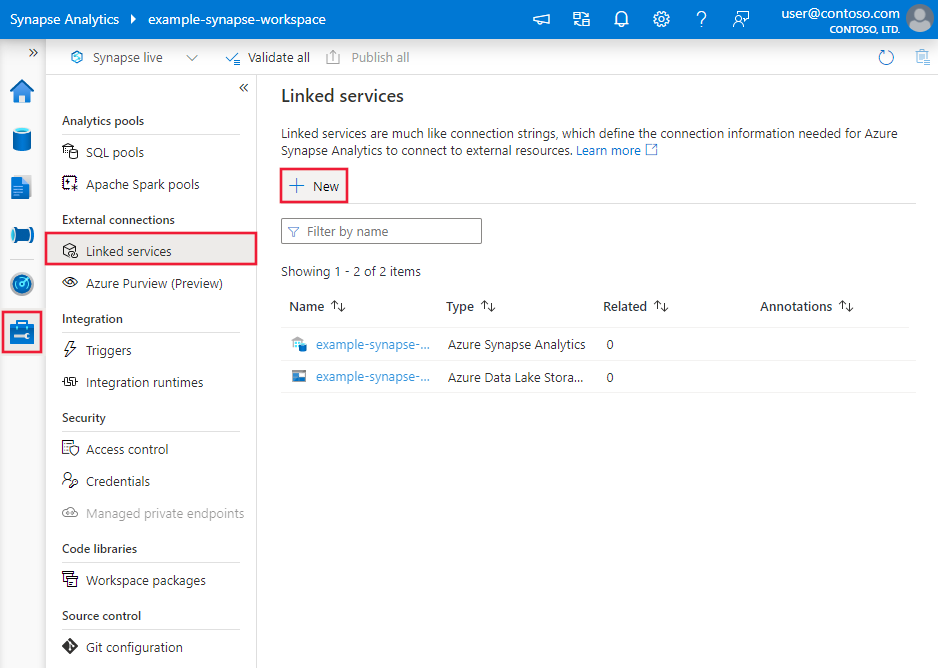
Search for Dynamics or Dataverse and select the Dynamics 365 (Microsoft Dataverse) or Dynamics CRM connector.
Configure the service details, test the connection, and create the new linked service.
Connector configuration details
The following sections provide details about properties that are used to define entities specific to Dynamics.
Linked service properties
The following properties are supported for the Dynamics linked service.
Dynamics 365 and Dynamics CRM online
Property
Description
Required
type
The type property must be set to "Dynamics", "DynamicsCrm", or "CommonDataServiceForApps".
Yes
deploymentType
The deployment type of the Dynamics instance. The value must be "Online" for Dynamics online.
Yes
serviceUri
The service URL of your Dynamics instance, the same one you access from browser. An example is "https://.crm[x].dynamics.com".
Yes
authenticationType
The authentication type to connect to a Dynamics server. Valid values are "AADServicePrincipal", "Office365" and "ManagedIdentity".
Yes
servicePrincipalId
The client ID of the Microsoft Entra application.
Yes when authentication is "AADServicePrincipal"
servicePrincipalCredentialType
The credential type to use for service-principal authentication. Valid values are "ServicePrincipalKey" and "ServicePrincipalCert".
Note: It's recommended to use ServicePrincipalKey. There's known limitation for ServicePrincipalCert credential type where the service could encounter transient issue of failing to retrieve secret from the key vault.
Yes when authentication is "AADServicePrincipal"
servicePrincipalCredential
The service-principal credential.
When you use "ServicePrincipalKey" as the credential type, servicePrincipalCredential can be a string that the service encrypts upon linked service deployment. Or it can be a reference to a secret in Azure Key Vault.
When you use "ServicePrincipalCert" as the credential, servicePrincipalCredential must be a reference to a certificate in Azure Key Vault, and ensure the certificate content type is PKCS #12.
The integration runtime to be used to connect to the data store. If no value is specified, the property uses the default Azure integration runtime.
No
Note
The Dynamics connector formerly used the optional organizationName property to identify your Dynamics CRM or Dynamics 365 online instance. While that property still works, we suggest you specify the new serviceUri property instead to gain better performance for instance discovery.
Example: Dynamics online using Microsoft Entra service principal and key authentication
Dynamics 365 and Dynamics CRM on-premises with IFD
More properties that compare to Dynamics online are hostName and port.
Property
Description
Required
type
The type property must be set to "Dynamics", "DynamicsCrm", or "CommonDataServiceForApps".
Yes
deploymentType
The deployment type of the Dynamics instance. The value must be "OnPremisesWithIfd" for Dynamics on-premises with IFD.
Yes
hostName
The host name of the on-premises Dynamics server.
Yes
port
The port of the on-premises Dynamics server.
No. The default value is 443.
organizationName
The organization name of the Dynamics instance.
Yes
authenticationType
The authentication type to connect to the Dynamics server. Specify "ActiveDirectoryAuthentication" for Dynamics on-premises with IFD.
Yes
domain
The Active Directory domain that will verify user credentials.
Yes
username
The username to connect to Dynamics.
Yes
password
The password for the user account you specified for the username. You can mark this field with "SecureString" to store it securely. Or you can store a password in Key Vault and let the copy activity pull from there when it does data copy. Learn more from Store credentials in Key Vault.
Yes
connectVia
The integration runtime to be used to connect to the data store. If no value is specified, the property uses the default Azure integration runtime.
No
Note
Due to the sunset of Ifd authentication type by August 31, 2024, please upgrade to Active Directory Authentication type before the date if you are currently using it.
Example: Dynamics on-premises with IFD using Active Directory authentication
For a full list of sections and properties available for defining datasets, see the Datasets article. This section provides a list of properties supported by Dynamics dataset.
To copy data from and to Dynamics, the following properties are supported:
Property
Description
Required
type
The type property of the dataset must be set to "DynamicsEntity", "DynamicsCrmEntity", or "CommonDataServiceForAppsEntity".
Yes
entityName
The logical name of the entity to retrieve.
No for source if the activity source is specified as "query" and yes for sink
For a full list of sections and properties available for defining activities, see the Pipelines article. This section provides a list of properties supported by Dynamics source and sink types.
Dynamics as a source type
To copy data from Dynamics, the copy activity source section supports the following properties:
Property
Description
Required
type
The type property of the copy activity source must be set to "DynamicsSource", "DynamicsCrmSource", or "CommonDataServiceForAppsSource".
Yes
query
FetchXML is a proprietary query language that is used in Dynamics online and on-premises. See the following example. To learn more, see Build queries with FetchXML.
No if entityName in the dataset is specified
Note
The PK column will always be copied out even if the column projection you configure in the FetchXML query doesn't contain it.
Important
When you copy data from Dynamics, explicit column mapping from Dynamics to sink is optional. But we highly recommend the mapping to ensure a deterministic copy result.
When the service imports a schema in the authoring UI, it infers the schema. It does so by sampling the top rows from the Dynamics query result to initialize the source column list. In that case, columns with no values in the top rows are omitted. The same behavior also applies to data preview and copy executions if there's no explicit mapping. You can review and add more columns into the mapping, which are honored during copy runtime.
To copy data to Dynamics, the copy activity sink section supports the following properties:
Property
Description
Required
type
The type property of the copy activity sink must be set to "DynamicsSink", "DynamicsCrmSink", or "CommonDataServiceForAppsSink".
Yes.
writeBehavior
The write behavior of the operation. The value must be "Upsert".
Yes
alternateKeyName
The alternate key name defined on your entity to do an upsert.
No.
writeBatchSize
The row count of data written to Dynamics in each batch.
No. The default value is 10.
ignoreNullValues
Whether to ignore null values from input data other than key fields during a write operation.
Valid values are TRUE and FALSE:
TRUE: Leave the data in the destination object unchanged when you do an upsert or update operation. Insert a defined default value when you do an insert operation.
FALSE: Update the data in the destination object to a null value when you do an upsert or update operation. Insert a null value when you do an insert operation.
No. The default value is FALSE.
maxConcurrentConnections
The upper limit of concurrent connections established to the data store during the activity run. Specify a value only when you want to limit concurrent connections.
No
bypassBusinessLogicExecution
Bypass custom business logic to disable custom plug-ins and workflows except:
• Plug-ins that are part of the core Microsoft Dataverse system or part of a solution where Microsoft is the publisher. • Workflows included in a solution where Microsoft is the publisher.
The value can be CustomSync, CustomAsync, CustomSync,CustomAsync. You can also manually input GUIDs (separated by commas) as the value to specify which registered plug-in steps to bypass. This allows you to bypass the specified plug-in step instead of all synchronous and asynchronous custom logic.
Note that you must have the prvBypassCustomBusinessLogic privilege. By default, only users with the system administrator security role have this privilege. Any Dataverse user who belongs to a Dataverse team with an owner type automatically inherits the privileges associated with the team's security roles. For more information, see this article.
No
bypassPowerAutomateFlows
Bypass Power Automate flows. For more information, see this article.
No
Note
The default value for both the sink writeBatchSize and the copy activity parallelCopies for the Dynamics sink is 10. Therefore, 100 records are concurrently submitted by default to Dynamics.
For Dynamics 365 online, there's a limit of 52 concurrent batch calls per organization. If that limit is exceeded, a "Server Busy" exception is thrown before the first request is ever run. Keep writeBatchSize at 10 or less to avoid such throttling of concurrent calls.
The optimal combination of writeBatchSize and parallelCopies depends on the schema of your entity. Schema elements include the number of columns, row size, and number of plug-ins, workflows, or workflow activities hooked up to those calls. The default setting of writeBatchSize (10) × parallelCopies (10) is the recommendation according to the Dynamics service. This value works for most Dynamics entities, although it might not give the best performance. You can tune the performance by adjusting the combination in your copy activity settings.
When you select an elastic tables in the copy activity sink, the connector mapping supports the partitionid column. You can map your source data column to the sink's partitionid column. If not mapped, the primary key value is used as the default value for the partitionid column.
partitionid can be used in Dataverse alternate keys or primary key scenarios on the write path. Each elastic table contains a system-defined partitionid column and has an alternate key named KeyForNoSqlEntityWithPKPartitionId, which combines the primary key of the table with the partitionid column. For more information, see this article.
Retrieving data from views
To retrieve data from Dynamics views, you need to get the saved query of the view, and use the query to get the data.
There are two entities that store different types of view: "saved query" stores system view and "user query" stores user view. To get the information of the views, refer to the following FetchXML query and replace the "TARGETENTITY" with savedquery or userquery. Each entity type has more available attributes that you can add to the query based on your need. Learn more about savedquery entity and userquery entity.
You can also add filters to filter the views. For example, add the following filter to get a view named "My Active Accounts" in account entity.
Data type mapping for Dynamics
When you copy data from Dynamics, the following table shows mappings from Dynamics data types to interim data types within the service. To learn how a copy activity maps to a source schema and a data type map to a sink, see Schema and data type mappings.
Configure the corresponding interim data type in a dataset structure that is based on your source Dynamics data type by using the following mapping table:
Make your source contains both the field value and the corresponding target entity name.
If all records map to the same target entity, ensure one of the following conditions:
Your source data has a column that stores the target entity name.
You've added an extra column in the copy activity source to define the target entity.
If different records map to different target entities, make sure your source data has a column that stores the corresponding target entity name.
Map both the value and entity-reference columns from source to sink. The entity-reference column must be mapped to a virtual column with the special naming pattern {lookup_field_name}@EntityReference. The column doesn't actually exist in Dynamics. It's used to indicate this column is the metadata column of the given multitarget lookup field.
Make your source contains both the field value and the corresponding target entity schema name.
If all records map to the same target entity, ensure one of the following conditions:
Your source data has a column that stores the target entity schema name.
You've added an additional column in the copy activity source to define the target entity.
If different records map to different target entities, make sure your source data has a column that stores the corresponding target entity name.
Map both the value and entity-reference columns from source to sink. The entity-reference column must be mapped to a virtual column with the special naming pattern {lookup_field_name}@EntityReference. The column doesn't actually exist in Dynamics. It's used to indicate this column is the metadata column of the given multitarget lookup field.
Setting the Owner field
When setting the Owner field in Dynamics 365 (Microsoft Dataverse) or Dynamics CRM, it's important to provide a valid reference. The valid options for the @EntityReference are:
systemuser: This refers to an individual user within the system.
team: This refers to a team of users within the organization.
Ensure that the value provided corresponds to one of these options to avoid errors during data transformation.
For example, assume the source has these two columns:
CustomerField column of type GUID, which is the primary key value of the target entity in Dynamics.
Target column of type String, which is the logical name of the target entity.
Also assume you want to copy such data to the sink Dynamics entity field CustomerField of type Customer.
In copy-activity column mapping, map the two columns as follows:
CustomerField to CustomerField. This mapping is the normal field mapping.
Target to CustomerField@EntityReference. The sink column is a virtual column representing the entity reference. Input such field names in a mapping, as they won't show up by importing schemas.
If all of your source records map to the same target entity and your source data doesn't contain the target entity schema name, here's a shortcut: in the copy activity source, add another column. Name the new column by using the pattern {lookup_field_name}@EntityReference, set the value to the target entity name, then proceed with column mapping as usual. If your source and sink column names are identical, you can also skip explicit column mapping because copy activity by default maps columns by name.
Writing data to a lookup field via alternative keys
To write data into a lookup field using alternate key columns, follow this guidance and example:
Ensure your source contains all the lookup key columns.
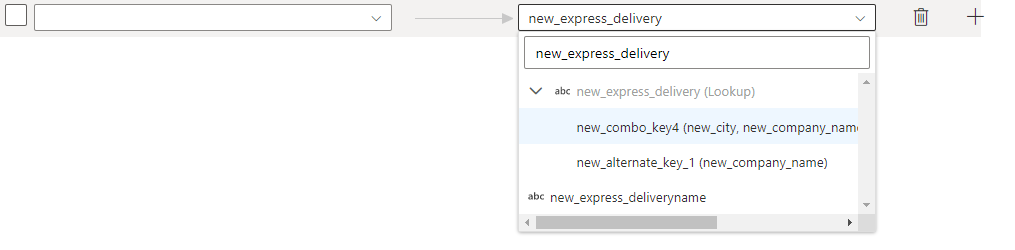
The alternate key columns must be mapped to the column with the special naming pattern {lookup_field_name}@{alternate_key_column_name}. The column doesn't exist in Dynamics. It's used to indicate that this column is used to look up the record in the target entity.
Go to Mapping tab in the sink transformation of mapping data flows. Select the alternate key as output columns under the Lookup field. The value after indicates the key columns of this alternate key.
Once selected, the alternate key columns will automatically display in below.
Map your input columns on left with the output columns.
Note
Currently this is only supported when you use inline mode in the sink transformation of mapping data flows.
Ensure your source contains all the lookup key columns.
The alternate key columns must be mapped to the column with the special naming pattern {lookup_field_schema_name}@{alternate_key_column_name}. The column doesn't exist in Dynamics. It's used to indicate that this column is used to look up the record in the target entity.
Pass your value to the column with a structure like this: "/{entity name}s(xxxxxxxx-xxxx-xxxx-xxxx-xxxxxxxxxx)"
Important
Your the entity name should be plural and lowercase.
Tip
To generate this value, you can use the Derived Column block, for example, putting "/{entity name}s(" + {dynamic lookup entity name} + ")" into the expression field.
Note
Currently this is only supported when you use inline mode in the sink transformation of mapping data flows.
Mapping data flow properties
When transforming data in mapping data flow, you can read from and write to tables in Dynamics. For more information, see the source transformation and sink transformation in mapping data flows. You can choose to use a Dynamics dataset or an inline dataset as source and sink type.
Source transformation
The below table lists the properties supported by Dynamics. You can edit these properties in the Source options tab.
Name
Description
Required
Allowed values
Data flow script property
Entity name
The logical name of the entity to retrieve.
Yes when use inline dataset
-
(for inline dataset only) entity
Query
FetchXML is a proprietary query language that is used in Dynamics online and on-premises. See the following example. To learn more, see Build queries with FetchXML.
No
String
query
Note
If you select Query as input type, the column type from tables can not be retrieved. It will be treated as string by default.
Dynamics source script example
When you use Dynamics dataset as source type, the associated data flow script is:
The below table lists the properties supported by Dynamics sink. You can edit these properties in the Sink options tab.
Name
Description
Required
Allowed values
Data flow script property
Alternate key name
The alternate key name defined on your entity to do an update, upsert or delete.
No
-
alternateKeyName
Update method
Specify what operations are allowed on your database destination. The default is to only allow inserts. To update, upsert, or delete rows, an Alter row transformation is required to tag rows for those actions.
Yes
true or false
insertable updateable upsertable deletable
Entity name
The logical name of the entity to write.
Yes when use inline dataset
-
(for inline dataset only) entity
Dynamics sink script example
When you use Dynamics dataset as sink type, the associated data flow script is:
 Azure Data Factory