Note
Access to this page requires authorization. You can try signing in or changing directories.
Access to this page requires authorization. You can try changing directories.
Upgrading an ASP.NET MVC 2 Project to ASP.NET MVC 3 Tools Update
ASP.NET MVC 3 Tools Update (April 12, 2011)
- "Add Controller" dialog box can now scaffold controllers with views and data access code
- Improvements to the "ASP.NET MVC 3 New Project" Dialog Box
- Project templates now include Modernizr 1.7
- Project templates include updated versions of jQuery, jQuery UI, and jQuery Validation
- Project templates now include ADO.NET Entity Framework 4.1 as a pre-installed NuGet package
- Project templates include JavaScript libraries as pre-installed NuGet packages
- Known Issues
ASP.NET MVC 3 RTM (January 13, 2011)
- Change: Updated the version of jQuery UI to 1.8.7
- Change: Changed the default ModelMetadataProvider back to DataAnnotationsModelMetadataProvider
- Fixed: Pasting part of a Razor expression that contains whitespace results in it being reversed
- Fixed: Renaming a Razor file that is opened in the editor disables syntax colorization and IntelliSense
- Known Issues
- Breaking Changes
ASP.NET MVC 3 Release Candidate 2 (December 10, 2010)
- Project Templates Changed to Include jQuery 1.4.4, jQuery Validation 1.7, and jQuery UI 1.8.6y UI 1.8.6
- Added "AdditionalMetadataAttribute" Class
- Improved View Scaffolding
- Added Html.Raw Method
- Renamed "Controller.ViewModel" Property and the "View" Property To "ViewBag"
- Renamed "ControllerSessionStateAttribute" Class to "SessionStateAttribute"
- Renamed RemoteAttribute "Fields" Property to "AdditionalFields"
- Renamed "SkipRequestValidationAttribute" to "AllowHtmlAttribute"
- Changed "Html.ValidationMessage" Method to Display the First Useful Error Message
- Fixed @model Declaration to not Add Whitespace to the Document
- Added "FileExtensions" Property to View Engines to Support Engine-Specific File Names
- Fixed "LabelFor" Helper to Emit the Correct Value for the "For" Attribute
- Fixed "RenderAction" Method to Give Explicit Values Precedence During Model Binding
- Breaking Changes
- Known Issues
ASP.NET MVC 3 Release Candidate (Nov 9, 2010)
- New Features in ASP.NET MVC 3 RC
- NuGet Package Manager
- Improved "New Project" Dialog Box
- Sessionless Controllers
- New Validation Attributes
- New Overloads for "LabelFor" and "LabelForModel" Methods
- Child Action Output Caching
- "Add View" Dialog Box Improvements
- Granular Request Validation
- Breaking Changes
- Known Issues
ASP.MVC 3 Beta Notes (Oct 6, 2010)
- New Features in ASP.NET MVC 3 Beta
- NuPack Package Manager
- Improved New Project Dialog Box
- Simplified Way to Specify Strongly Typed Models in Razor Views
- Support for New ASP.NET Web Pages Helper Methods
- Additional Dependency Injection Support
- New Support for Unobtrusive jQuery-Based Ajax
- New Support for Unobtrusive jQuery Validation
- New Application-Wide Flags for Client Validation and Unobtrusive JavaScript
- New Support for Code that Runs Before Views Run
- New Support for the VBHTML Razor Syntax
- More Granular Control over ValidateInputAttribute
- Helpers Convert Underscores to Hyphens for HTML Attribute Names Specified Using Anonymous Objects
- Bug Fixes
- Breaking Changes
- Known Issues
Overview
This document describes the release of ASP.NET MVC 3 RTM for Visual Studio 2010. ASP.NET MVC is a framework for developing Web applications that uses the Model-View-Controller (MVC) pattern. The ASP.NET MVC 3 installer includes the following components:
- ASP.NET MVC 3 runtime components
- ASP.NET MVC 3 Visual Studio 2010 tools
- ASP.NET Web Pages run-time components
- ASP.NET Web Pages Visual Studio 2010 tools
- Microsoft Package Manager for .NET (NuGet)
- An update for Visual Studio 2010 that enables support for Razor syntax. (For details, see KnowledgeBase article 2483190.)
The full set of release notes for each pre-release version of ASP.NET MVC 3 can be found on the ASP.NET website at the following URL:
https://www.asp.net/learn/whitepapers/mvc3-release-notes
Installation Notes
To install ASP.NET MVC 3 RTM using the Web Platform Installer (Web PI), visit the following page:
https://www.microsoft.com/en-us/download/details.aspx?id=4211
Alternatively, you can download the installer for ASP.NET MVC 3 RTM for Visual Studio 2010 from the following page:
https://go.microsoft.com/fwlink/?LinkID=208140
ASP.NET MVC 3 can be installed and can run side-by-side with ASP.NET MVC 2.
Software Requirements
The ASP.NET MVC 3 run-time components require the following software:
.NET Framework version 4.
ASP.NET MVC 3 Visual Studio 2010 tools require the following software:
Visual Studio 2010 or Visual Web Developer 2010 Express.
Documentation
Documentation for ASP.NET MVC is available on the MSDN Web site at the following URL:
https://go.microsoft.com/fwlink/?LinkId=205717
Tutorials and other information about ASP.NET MVC are available on the MVC page of the ASP.NET Web site at the following URL:
Support
This is a fully supported release. Information about getting technical support can be found at the Microsoft Support website.
Also feel free to post questions about this release to the ASP.NET MVC forum, where members of the ASP.NET community are frequently able to provide informal support:
https://forums.asp.net/1146.aspx
Upgrading an ASP.NET MVC 2 Project to ASP.NET MVC 3 Tools Update
ASP.NET MVC 3 can be installed side by side with ASP.NET MVC 2 on the same computer, which gives you flexibility in choosing when to upgrade an ASP.NET MVC 2 application to ASP.NET MVC 3.
To manually upgrade an existing ASP.NET MVC 2 application to version 3, do the following:
Create a new empty ASP.NET MVC 3 project on your computer. This project will contain some files that are required for the upgrade.
Copy the following files from the ASP.NET MVC 3 project into the corresponding location of your ASP.NET MVC 2 project. You'll need to update any references to the jQuery library to account for the new filename ( jQuery-1.5.1.js):
- /Views/Web.config
- /packages.config
- /scripts/*.js
- /Content/themes/*.*
Copy the packages folder in the root of the empty ASP.NET MVC 3 project solution into the root of your solution, which is in the directory where the solution's .sln file is located.
If your ASP.NET MVC 2 project contains any areas, copy the /Views/Web.config file to the Views folder of each area.
In both Web.config files in the ASP.NET MVC 2 project, globally search and replace the ASP.NET MVC version. Find the following:
System.Web.Mvc, Version=2.0.0.0Replace it with the following:
System.Web.Mvc, Version=3.0.0.0In Solution Explorer, delete the reference to System.Web.Mvc (which points to the DLL from version 2), then add a reference to System.Web.Mvc (v3.0.0.0).
Add a reference to System.Web.WebPages.dll and System.Web.Helpers.dll. These assemblies are located in the following folders:
- %ProgramFiles%\ Microsoft ASP.NET\ASP.NET MVC 3\Assemblies
- %ProgramFiles%\ Microsoft ASP.NET\ASP.NET Web Pages\v1.0\Assemblies
In Solution Explorer, right-click the project name and select Unload Project. Then right-click the project name again and select Edit ProjectName.csproj.
Locate the ProjectTypeGuids element and replace {F85E285D-A4E0-4152-9332-AB1D724D3325} with {E53F8FEA-EAE0-44A6-8774-FFD645390401}.
Save the changes, right-click the project, and then select Reload Project.
In the application's root Web.config file, add the following settings to the assemblies section.
If the project references any third-party libraries that are compiled using ASP.NET MVC 2, add the following highlighted bindingRedirect element to the Web.config file in the application root under the configuration section:
Changes in ASP.NET MVC 3 Tools Update
This section describes changes made in the ASP.NET MVC 3 Tools Update release since the ASP.NET MVC 3 RTM release.
"Add Controller" dialog box can now scaffold controllers with views and data access code
Scaffolding is a way of quickly generating a controller and views for your application. After the code has been generated, you can edit it to meet your project's requirements.
To launch the Add Controller dialog box in ASP.NET MVC 3, right-click the Controllers folder in Solution Explorer, click Add, and then click Controller. The dialog box has been enhanced to offer additional scaffolding options.

There are three scaffolding templates available by default.
Empty Controller
This template generates an empty controller file. This template is equivalent to not checking Add actions for create, edit, details, delete scenarios in previous versions of ASP.NET MVC. If you choose this, no further options are available.
Controller with empty read/write actions
This template generates a controller file that has all the required action methods but no implementation code in the methods. This template is equivalent to checking Add actions for create, edit, details, delete scenarios in previous versions of ASP.NET MVC. If you choose this, no further options are available.
Controller with read/write actions and views, using Entity Framework
This template enables you to quickly create a working data-entry user interface. It generates code that handles a range of common requirements and scenarios, such as the following:
Data access. The generated code reads and writes entities in a database. It works with the Entity Framework Code First approach if you choose an existing data context class or if you let the template generate a new DbContext class. It also works with the Entity Framework Database First or Model First approach if you choose an existing ObjectContext class.
Validation. The generated code uses ASP.NET MVC model binding and metadata features so that form submissions are validated according to rules declared on your model class. This includes built-in validation rules, such as the Required and StringLength attributes, and custom validation rules.
One-to-many relationships. If you define one-to-many foreign-key relationships between your model classes, the generated code will produce drop-down lists for selecting related entities. For example, you might define the following model classes following Entity Framework Code First conventions:
public class Product
{
     public int ProductId { get; set; }
     [Required]
     public string Name { get; set; }

     // Product belongs to Category
     public int CategoryId { get; set; }
     public virtual Category Category { get; set; }
}
public class Category
{
     public int CategoryId { get; set; }
     [Required]
     public string Name { get; set; }
}
When you then scaffold a controller for the Product class, its views will allow users to choose a Category object for each Product instance.
This template enables additional options in the Add Controller dialog box. For Model class, you can choose any model class in your solution, which determines the type of data that users will be able to create or edit:
If you want to use Entity Framework Code First, you can choose any model class.
If you are using Entity Framework Database First or Entity Framework Model First, be sure to choose an entity class defined in your conceptual model.
For Data Context class, you can make these choices:
- If you want to use Code First and have no existing data context class, choose **New data context **. A data context class will then be generated for you.
- If you want to use Code First and have an existing data context class, choose it here. It will be updated to persist the model class you have selected.
- If you are using Database First or Model First, choose your object context class here.
For Views, choose the view engine you want to use, or choose None if you don't want to scaffold any views.
You can select Advanced Optionsto specify further options for the generated views. For example, you can choose the layout or master page to use.
Improvements to the "ASP.NET MVC 3 New Project" Dialog Box
The dialog box you use to create new ASP.NET MVC 3 projects includes multiple improvements, as listed below.
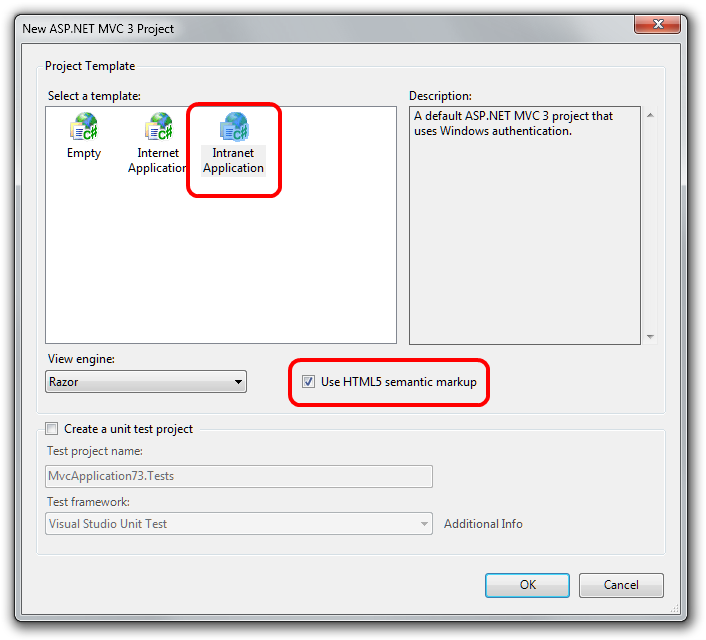
New "Intranet Project" Template
The Project Template list includes a new Intranet Application template. This template contains settings for building a web application using Windows authentication instead of forms authentication. Because an intranet application requires some IIS settings that can't be encapsulated in a project template, the template includes a readme file with instructions for how to make the project template work in IIS. Documentation for the a new Intranet Application template is available on the MSDN website at the following URL:
https://msdn.microsoft.com/library/gg703322(VS.98).aspx
Project templates are now HTML5 enabled
The new-project dialog box now contains an option to add HTML5-specific features to the project templates. Selecting the option causes views to be generated that contain the new HTML5 , and
Note that earlier versions of browsers do not support HTML5-specific tags. To address this limitation, the HTML5 project templates include a reference to the Modernizr library. (See the next section.)
Project templates now include Modernizr 1.7
Modernizr is a JavaScript library that enables support for CSS 3 and HTML5 in browsers that do not yet support these features. This library is included as a pre-installed NuGet package in templates for ASP.NET MVC 3 projects. For more information about Modernizr, see http://www.modernizr.com/.
Project templates include updated versions of jQuery, jQuery UI, and jQuery Validation
The project templates now include the following versions of the jQuery scripts:
- jQuery 1.5.1
- jQuery Validation 1.8
- jQuery UI 1.8.11
These libraries are included as pre-installed NuGet packages.
Project templates now include ADO.NET Entity Framework 4.1 as a pre-installed NuGet package
The ADO.NET Entity Framework 4.1 includes the Code First feature. Code First is a new development pattern for the ADO.NET Entity Framework that provides an alternative to the existing Database First and Model First patterns.
Code First is focused around defining your model using POCO classes ("plain old CLR objects") written in Visual Basic or C#. These classes can then be mapped to an existing database or be used to generate a database schema. Additional configuration can be supplied using DataAnnotations attributes or using fluent APIs.
Documentation for using Code Firstwith ASP.NET MVC is available on the ASP.NET website at the following URLs:
https://www.asp.net/mvc/tutorials/getting-started-with-mvc3-part1-cs https://www.asp.net/entity-framework/tutorials/creating-an-entity-framework-data-model-for-an-asp-net-mvc-application
Project templates include JavaScript libraries as pre-installed NuGet packages
When you create a new ASP.NET MVC 3 project, the project includes the JavaScript files mentioned previously (for example, the Modernizr library) by installing them using NuGet instead of directly adding the scripts to the Scripts folder in the project template contents. This enables you to use NuGet to update the scripts to the latest version when new versions of the scripts are released.
For example, given the frequency of new jQuery releases, the version of jQuery included in the project template will at some point be out of date. However, because jQuery is included as an installed NuGet package, you will be notified in the NuGet dialog box when newer versions of jQuery are available.
Because jQuery includes the version number in the file name, updating jQuery to the latest version also requires updating the