Releases: kiwix/kiwix-js-pwa
Release list
Kiwix JS Linux/Windows/macOS 3.9.3

Portable and installable builds for UWP, PWA, Electron and NWJS
Kiwix is an offline browser of archival content from Wikipedia, Project Gutenberg, TED Talks, Wikivoyage, Stackexchange, and many other sources. It makes knowledge available to people with limited or no Internet access. The software as well as the content is free for anyone to use. It requires at least one offline ZIM archive (which can be downloaded in the app).
This is a very large release, with almost 90 changes since 3.8.8 (see the full CHANGELOG). Its main focus has been security hardening, especially of the Electron and NWJS apps and of Restricted mode, together with dozens of bug fixes, including many regressions left over from the move to Bootstrap 4. Other highlights include opening ZIM archives straight from the file manager on macOS and Linux, signed disk images and auto-update for macOS, and an in-app library that can now browse and filter the whole ZIM catalogue. After updating, the Electron app may ask you to pick your archive once more: this is expected.

To use this app, download your choice of free content in-app from the Download Library on the Configuration page. For what's new, see the changes listed in the CHANGELOG. Builds are provided for 32bit and 64bit editions of Windows, Linux (tested on Ubuntu, Debian, Fedora and OpenSUSE), and macOS (Apple Silicon and Intel).
MS Store status: PUBLISHED
Winget status: IN CERTIFICATION
Please choose the correct version (those marked [AUTO] will self-update automatically when there is a new version):
-
Any modern OS (PWA)
- Try out our installable PWA (Progressive Web App) simply by visiting https://pwa.kiwix.org/ [AUTO]. Incredibly light, no store or download required, no heavy framework! It works offline once the app has cached its code, and in Chrome/Edge/Chromium, you can install it right from within the app. On Android (Chrome and Firefox), we strongly recommend you enable the Private File System option (when you click Select Storage), as it is much faster, and you can download archives directly into this storage. On iOS (Safari), you can add the PWA to your home screen - NB on iOS only you must use Safari because Apple currently bans Service Workers in other browsers. In Firefox Android you can install the app from the browser menu. In Firefox >= 143 on Windows you can add the app to the taskbar using an icon in the address bar, and it will gain its own icon and dedicated window.
-
Linux (see installation instructions below screenshot):
- Portable (Electron) - recommended
- AppImage 64bit (Ubuntu, Debian, Fedora, OpenSUSE): Kiwix-JS-Electron-3.9.3-E.AppImage [AUTO]
- AppImage ARM64 for Linux on ARM only (Ubuntu, Debian, Fedora, OpenSUSE, Raspberry Pi OS 64-bit on Pi 3 or later): Kiwix-JS-Electron-3.9.3-E-arm64.AppImage [AUTO]
- AppImage 32bit (Ubuntu, Debian, Fedora, OpenSUSE): Kiwix-JS-Electron-3.9.3-E-i386.AppImage [AUTO]
- Installable (Electron)
- Deb package 64bit (Ubuntu, Debian): kiwix-js-electron_3.9.3-E_amd64.deb [AUTO]
- Deb package 32bit (Ubuntu, Debian): kiwix-js-electron_3.9.3-E_i386.deb [AUTO]
- RPM package 64bit (Fedora, OpenSUSE): kiwix-js-electron-3.9.3-E.x86_64.rpm [AUTO]
- RPM package 32bit (Fedora, OpenSUSE): kiwix-js-electron-3.9.3-E.i686.rpm [AUTO]
- Portable (Electron) - recommended
-
Windows:
- Store app for Windows 10/11 (UWP) - recommended [AUTO]
- Install from the Microsoft Store: https://apps.microsoft.com/detail/9P8SLZ4J979J
- Or, on a PC, open a Terminal (or command prompt) and run
winget install 'kiwix js' -s msstore - Or, if you cannot use the Store, sideload a signed package with
winget install kiwix.kiwixjs- this doesn't auto-update, but you can upgrade easily by runningwinget upgrade kiwix.kiwixjs
- Installable (Electron)
- Windows 10/11 Web installer (auto selects correct package, supports 64bit, 32bit, Windows on ARM64): Kiwix-JS-Electron-Web-Setup-3.9.3-E.exe [AUTO]
- Windows 10/11 64bit modern MSIX install / uninstall - Kiwix-JS-Electron-3.9.3-E.appx - recommended
- Windows 7/8/8.1 standalone 32bit: Kiwix-JS-Electron-Win7-Setup-3.9.3-E.exe
- Windows 10/11 standalone 32bit (also runs on 64bit): Kiwix-JS-Electron-Setup-3.9.3-E.exe [AUTO]
- Alternatively, run
winget install kiwix.kiwixjs.electronin a Windows 10/11 Terminal [AUTO]
- Portable - no install needed
- WARNING: Windows XP or Vista only (legacy version): kiwix_js_windows-XP-3.9.3-N-win-ia32.zip - do not use this with modern Windows!
- Windows 10/11 32bit (also runs on 64bit): self-contained portable version, no unzip needed - Kiwix-JS-Electron-3.9.3-E.exe (if you find this version slow to launch, try the Setup version above, or a zipped version below)
- [Electron] Windows 10/11 32bit (also runs on 64bit): just unzip to any drive or folder - Kiwix-JS-Electron-3.9.3-E.zip (for Win7/8/8.1, please use the Win7 installer above)
- [NWJS] Windows 10/11 64bit: just unzip to any drive or folder - kiwix_js_windows-3.9.3-N-win-x64.zip
- Store app for Windows 10/11 (UWP) - recommended [AUTO]
-
macOS (signed and notarized by Apple - see installation instructions below screenshot):
- Disk images (Electron)
- macOS 12+ (Monterey or later) Apple Silicon (M1/M2/M3/M4): Kiwix-JS-Electron-3.9.3-E-macOS-arm64.dmg - recommended for Apple Silicon Macs [AUTO]
- macOS 12+ (Monterey or later) Intel (x64): Kiwix-JS-Electron-3.9.3-E-macOS-x64.dmg [AUTO]
- macOS 10.13-11 (High Sierra to Big Sur) Intel (x64): Kiwix-JS-Electron-3.9.3-E-macOS-HighSierra.dmg
- Disk images (Electron)
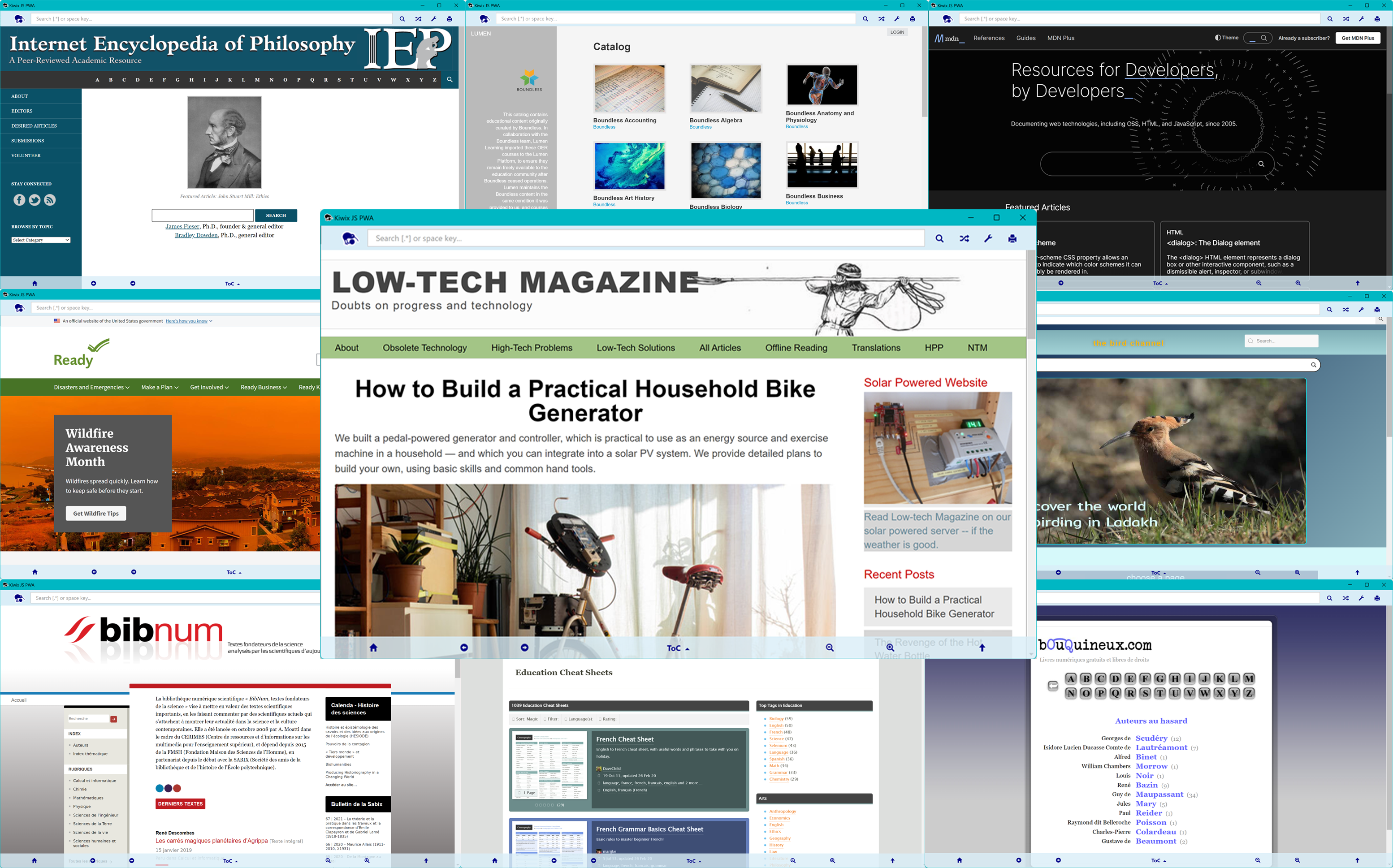
Installation Instructions
Windows
- The Windows Web installer (Windows 10/11 only) will select the correct architecture automatically and install itself, together with a shortcut in your shortcut menu. It auto-updates, but if you want to update it manually, then just install a new version over it (it will uninstall the old one for you). Please note that it needs Web access during the installation. If this is a problem, then use the correct standalone installer for your architecture.
- For the Windows 10/11 Portable builds (32bit, also runs on 64bit), the executable version (ending
.exe) can just be run, but it may be a bit slow to start up because it decompresses itself each time it runs. For a faster experience, use one of the zipped versions: unzip the contents of the package to any folder, or to a thumb drive, and double click onStart Kiwix JS [Electron/Windows]orStart Kiwix JS [Electron/Windows].bat. - For Windows 7/8/8.1, due to the deprecation of Chromium on these platforms, we only provide one option: a standalone installer built with the last version of Electron that supported Chrome on Windows 7+. This is also a 32bit package (but will run on 64bit).
- Microsoft Defender SmartScreen warning: If you get a Smartscreen notification when downloading an
.exe, or on first launch of the zipped portable apps, follow instructions to "Run anyway" if you trust this site. Additionally, when you first download an.exeinstaller, you may get a warning in your downloads "Kiwix-JS-Electron isn't commonly downloaded". If you see this, click on the file and choose "Keep anyway". A second screen may then popup telling you the publisher. So long as it's Kiwix, then click on "Show more" and allow the app. If you prefer, use one of the appx versions (ending.appx) as this format runs in a secure, isolated container.
Linux
- For the Linux portable builds, download and save the correct AppImage file anywhere (e.g. your Desktop). Make it executable by opening a terminal and running
chmod +x Kiwix-JS-Electron*.AppImageand t...
Supplementary installation files for Kiwix JS Electron

Kiwix JS Linux/Windows/macOS 3.9.2
This release has been withdrawn due to a critical bug with activation of the Service Worker in AppImage versions (introduced in the latest Electron release)
We have made a fix in-app for the bug, so you should ensure you update to the latest version.
Supplementary installation files for Kiwix JS Electron
Kiwix JS Linux/Windows/macOS 3.8.8
This build is out of date!
Please go to https://kiwix.github.io/kiwix-js-pwa/app for the latest release.
Supplementary installation files for Kiwix JS Electron
Autoupdate files ONLY. Please go to https://kiwix.github.io/kiwix-js-pwa/app for the main release.
Kiwix JS Linux/Windows/macOS 3.8.6
This build is out of date!
Please go to https://kiwix.github.io/kiwix-js-pwa/app for the latest release.
IMPORTANT NOTICE: the Windows Executables in this release were unsigned due to a delay in renewing the Kiwix Code Signing Certificate. However, if you are running Windows 10 or 11, you can still install Kiwix PWA from the Microsoft Store, or else simply go to https://pwa.kiwix.org in a Chromium browser, and install the PWA from Configuration. You can also download and use the portable versions (zip archives) that do not require installation. For signed versions, go to the latest release.
Supplementary installation files for Kiwix JS Electron
Autoupdate files ONLY. Please go to https://kiwix.github.io/kiwix-js-pwa/app for the main release.
WikiMed by Kiwix (Linux/Windows/macOS) 3.8.4
Portable and installable builds for Electron and UWP
NEW: Please note that due to GitHub's max 2GB artefact size, the latest WikiMed by Kiwix apps can no longer be served from GitHub. We have therefore switched most of the app packages so they are downloaded from our AWS S3 Bucket, linked from the URLs below*
WikiMed by Kiwix is an offline medical encyclopaedia with content curated by Wikipedia's WikiProject Medicine. Containing more than 73,000 medical and health-related articles, it makes medical knowledge available to people with limited Internet access or anyone who needs quick reference access to in-depth medical information. Other languages can be downloaded within the app.

These custom apps are packaged with the 15 December 2025 English-language WikiMed archive mdwiki_en_all-app_maxi_2025-11.zim. They will run on 32bit and 64bit editions of Windows or Linux (tested on Ubuntu, Debian, Fedora and OpenSUSE), and experimentally on macOS. The Windows builds are not compatible with Windows XP or Windows Vista. If you need an app compatible with those old platforms, get Kiwix JS Windows reader and download the latest WikiMed archive from within the app.
MS Store status: PUBLISHED
Winget status: IN CERTIFICATION
Please choose the correct version:
-
Linux (installation instructions below):
- Portable (Electron)
- AppImage 64bit (Ubuntu, Debian, Fedora, OpenSUSE): WikiMed-by-Kiwix-3.8.4-E.AppImage
- AppImage ARM64 for Linux on ARM only (Ubuntu, Debian, Fedora, OpenSUSE): WikiMed-by-Kiwix-3.8.4-E-arm64.AppImage
- AppImage 32bit (Ubuntu, Debian, Fedora, OpenSUSE): WikiMed-by-Kiwix-3.8.4-E-i386.AppImage
- Installable (Electron)
- Deb package 64bit (Ubuntu, Debian): kiwix-js-wikimed_3.8.4-E_amd64.deb
- Portable (Electron)
-
Windows:
- Store app for Windows 10/11 - recommended (self-updates)
- Install from the Microsoft Store: https://apps.microsoft.com/detail/9PHJSNP1CZ8J
- Or, on a PC, open a command prompt and run
winget install wikimed -s msstore - Or, if you cannot use the Store, sideload a signed package with
winget install kiwix.wikimed- upgrade easily by runningwinget upgrade kiwix.wikimed
- Installable (Electron)
- Windows 10/11 Web installer (auto selects correct package, supports 64bit, 32bit, Windows on ARM64): WikiMed-by-Kiwix-Web-Setup-3.8.4-E.exe
- Windows 10/11 64bit modern MSIX install / uninstall: WikiMed-by-Kiwix-3.8.4-E.appx
- Alternatively, run
winget install kiwix.wikimed.electronin a Windows 10/11 Terminal
- Portable (Electron) - just unzip, no install needed
- Windows 10/11 32bit (also runs on 64bit): WikiMed-by-Kiwix-3.8.4-E.zip
- Windows 7/8/8.1 32bit (also runs on 64bit): WikiMed-by-Kiwix-Win7-3.8.4-E.zip
- Store app for Windows 10/11 - recommended (self-updates)
-
macOS (Experimental, unsigned - follow instructions below to run for first time):
- Portable (Electron) - experimental
- macOS 10.15+ Apple Silicon (M1/M2/M3): WikiMed-by-Kiwix-3.8.4-E-macOS-arm64.zip - recommended for Apple Silicon Macs
- macOS 10.15+ Intel (x64): WikiMed-by-Kiwix-3.8.4-E-macOS-x64.zip
- macOS 10.13 High Sierra / 10.14 Mojave Intel (x64): WikiMed-by-Kiwix-3.8.4-E-macOS-HighSierra.zip
- Portable (Electron) - experimental
Installation Instructions - Electron
Windows
- For the Windows Web installer, simply download and launch. It will select the correct architecture automatically and install itself, together with a shortcut in your shortcut menu. When you want to update the app, just install a new version over it (it will uninstall the old one for you). Please note that the Web installer needs Web access during the installation. If this is a problem, use the portable zip instead.
- For the Windows Portable build, unzip the contents of the WikiMed-by-Kiwix-3.8.4-E.zip archive to any folder, or to a flash drive / thumb drive, and double click on
Start WikiMed by KiwixorStart WikiMed by Kiwix.bat, or open thekiwix-js-pwa-win32-ia32folder and double click onWikiMed by Kiwix.exe. - For Windows 7/8/8.1, due to the deprecation of Chromium on these platforms, we provide a portable zip built with the last version of Electron that supported Chrome on Windows 7+. This is a 32bit package (but will run on 64bit). Unzip and use the launcher scripts as described above.
- Microsoft Defender SmartScreen warning: If you get a Smartscreen notification when downloading an
.exe, or on first launch of the zipped portable apps, follow instructions to "Run anyway" if you trust this site. Additionally, when you first download an.exeinstaller, you may get a warning in your downloads "Kiwix-JS-Electron isn't commonly downloaded". If you see this, click on the file and choose "Keep anyway". A second screen may then popup telling you the publisher. So long as it's kiwix, then click on "Show more" and allow the app. If you prefer, use one of the appx versions (ending.appxor.appxbundle) as this format runs in a secure, isolated container.
Linux
- For the Linux portable builds, download and save the correct AppImage file anywhere (e.g. your Desktop), and double-click it. If it doesn't work, open a terminal and run
chmod a+x WikiMed-by-Kiwix*.AppImageand then./WikiMed-by-Kiwix*.AppImage.- On recent Linux (notably Ubuntu) you may need to install fuse2 by typing
sudo apt install libfuse2(see here). - On older Debian, you may need to add the
--no-sandboxswitch to the command (see electron/electron#17972 (comment)). This is not necessary on recent versions. - On OpenSUSE, you may need to install Chrome in order to get the dependencies necessary to run the AppImage (because Electron apps run Chrome internally). With older versions of OpenSUSE, you may additionally need to use these commandline switches:
./WikiMed-by-Kiwix*.AppImage --use-gl=disabled --disable-gpu-compositing,¹ but this is no longer necessary in recent versions.
- On recent Linux (notably Ubuntu) you may need to install fuse2 by typing
- For the Linux installable builds:
- Debian/Ubuntu: download the correct
.debpackage. Open a terminal,cdto the directory containing the package, and typesudo apt-get updatefollowed bychmod a+x ./kiwix-js-wikimed*.deb, thensudo apt install ./kiwix-js-wikimed*.deb. To run the app from the command line, rather than from its installed icon, simply typekiwix-js-wikimedin terminal. On Debian, if you receive the errorlibgbm.so.1: cannot open shared object file, please runsudo apt install libgbm-dev. On older versions of Debian, you may have to add--no-sandboxto the command line when running the app, i.e.kiwix-js-wikimed --no-sandbox. When you want to update, just install the new version, and it will install over the old version. - For OpenSUSE and Fedora, it may be easiest to extract the files from the AppImage instead of using the Deb package. The executable is
kiwix-js-wikimedand on older versions of OpenSUSE you may need to add the commandline switches--use-gl=disabled --disable-gpu-compositing.¹
- Debian/Ubuntu: download the correct
Apple Mac
- For macOS builds: If you trust this Repository, download the correct ZIP file for your Mac architecture (Apple Silicon, Intel, or High Sierra/Mojave). Safari will automatically extract the ZIP file upon download, while Chrome and Firefox will download the ZIP file without extracting it. These builds are unsigned and require additional steps to run:
- Remove quarantine flag from ZIP (Chrome/Firefox users only - Safari users skip to step 2):
- Open Terminal (Applications > Utilities > Terminal)
- Run the following command:
xattr -d com.apple.quarantine ~/Downloads/WikiMed*.zip
- Then extract the ZIP file by double-clicking it
- Safari users only: The app (
WikiMed by Kiwix.app) will already be extracted in your Downloads folder, but you need to remove the quarantine flag (not necessary if you did Step 1):xattr -d com.apple.quarantine ~/Downloads/WikiMed\ by\ Kiwix.app
- Launch the app by double-clicking it - it should now open normally
- Architecture Selection:
- **Apple Sil...
- Remove quarantine flag from ZIP (Chrome/Firefox users only - Safari users skip to step 2):
Supplementary installation files for WikiMed
This contains only the supplementary installation files for the WikiMed Web-based installer. Please go to the main WikiMed release.