

Figma lets you organize your work through the file browser, where you can find, rename, move, duplicate, and delete files. Files can be grouped into folders to keep related work together and make it easier to find later.
- Figma uses the file browser to manage files and folders.
- Files can be renamed, moved, duplicated, and deleted.
- Drafts can be used for personal or unfinished work.
- Deleted files can be restored from Trash unless permanently deleted.
- Moving a file can affect its access because permissions are connected to folders.
Managing Files in Figma
1. Rename a File
Clear file names make designs easier to identify and find.
To rename a file:
- Open the file browser.
- Right-click the file and select Rename.
- Enter the new name and apply the change.

You can also rename an open file by clicking its current name in the left sidebar.
2. Organize Files into Folders
Figma uses folders to organize related files. You can place files for the same project, team, or type of work in one folder.
Folders can also be nested on supported paid plans, allowing related folders to be organized inside a larger folder.
Note: Figma began transitioning Projects to Folders on August 3, 2026. Existing content and access remain the same.
3. Move a File
You can move a file from one folder to another when you need to reorganize your work. You can also move a file from Drafts into a folder when it is ready to be organized with other work.
To move a file:
- Open the file browser.
- Right-click the file.
- Select Move.
- Choose the destination folder.
The access a file has can change when it is moved because folders have their own permissions.
4. Duplicate a File
Duplicating creates a separate copy of an existing file. You need at least view access to duplicate a file.
To duplicate a file:
- Right-click the file in the file browser.
- Select Duplicate.
- Figma creates a new copy of the file.

A duplicated file does not include the original file's comments or version history.
5. Delete and Restore a File
When a file is no longer needed, you can move it to Trash. Deleted files can later be restored or permanently deleted from the Trash section of the file browser.
To restore a file:
- Open Trash in the file browser.
- Find the file.
- Right-click it and select Restore.
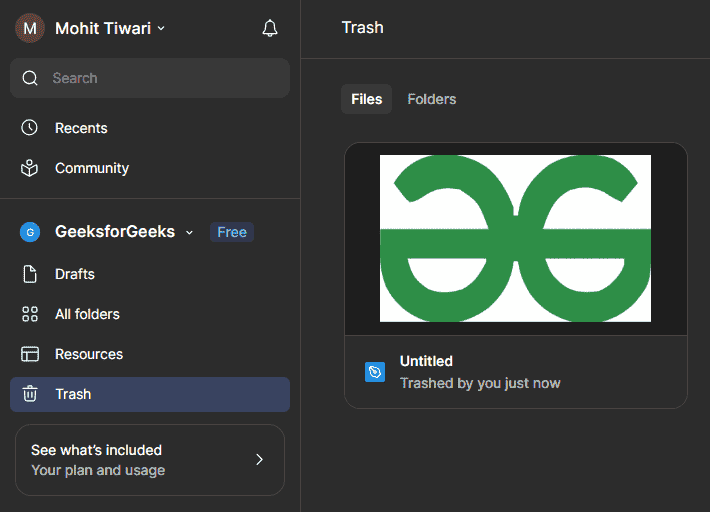
A permanently deleted file cannot be recovered.
6. Use Drafts for Unfinished Work
Drafts is a personal space for creating and experimenting with files before moving them into a folder. Draft files are private by default, although you can share them with specific people.
When a design is ready to be organized with other team work, you can move the file from Drafts into a folder.
Benefits of File Management
Good file management helps you:
- Find files faster: Clear names and organized folders make files easier to locate.
- Keep related work together: Folders group related files in one place.
- Keep experiments separate: Drafts provide a space for unfinished or experimental work.
- Create safe copies: Duplicating a file provides a separate copy for further work.
Limitations and Considerations
- Permissions can change when moving files: The destination folder's access settings can affect who can access the file.
- Duplicated files lose some history: Comments and version history from the original are not included in a duplicate.
- Permanent deletion cannot be undone: A permanently deleted file cannot be recovered.
- Folder availability depends on the plan: Figma currently allows different folder capabilities depending on the plan. For example, Starter supports one folder, while Professional, Organization, and Enterprise support unlimited folders; paid plans also support nested folders.