

Transitions control how a prototype moves from one frame to another. Figma provides several transition options that can make prototype navigation feel more natural and help show changes between screens.
Add a Transition
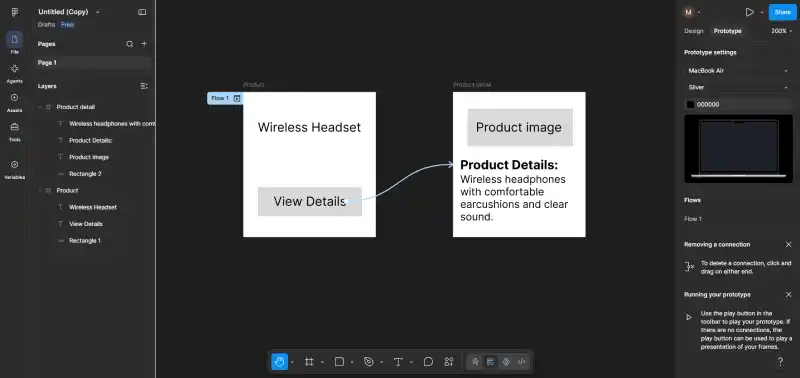
After creating a prototype connection, you can choose its transition from the Prototype tab.
- Select the prototype connection between two frames.
- Open the Prototype tab in the right sidebar.
- In the interaction settings, find the Animation option.
- Choose a transition.
- Adjust the available settings such as duration, easing, or direction.
- Preview the prototype to check the result.
Basic Transition Types
1. Instant: Changes to the destination frame immediately when the interaction is triggered. It does not animate the change between frames.
2. Dissolve: Fades the destination frame over the current frame. You can adjust its duration and easing.
3. Smart Animate: Looks for matching layers between frames and animates their supported changes, such as position, size, or rotation. It supports duration and easing.
4. Move: Brings the destination frame into or out of view. You can control the direction, easing, and duration.
5. Push: Moves the destination frame into view while pushing the current frame out. It supports direction, easing, and duration and can be useful for simulating swipe-style navigation.
6. Slide: Moves the destination frame into or out of view while also dissolving the frames during the transition. It supports direction, easing, and duration.
Benefits of Using Transitions
- Improves prototype flow: Transitions show how one screen changes into another.
- Makes interactions clearer: Different animation types can communicate different navigation behaviors.
- Supports realistic testing: Animated transitions can help designers evaluate how an interface may feel before development.
Limitations and Considerations
- Not every transition provides the same controls; options such as direction, easing, and duration depend on the selected animation.
- Smart Animate works with matching layers and supported properties; unsupported changes may use a different transition behavior.
- Very long or unnecessary animations can make a prototype harder to evaluate, so transitions should match the intended interaction.