Use the image link [image_link] attribute to add the primary image for your product. Your main image is the first thing potential customers see across Google channels. A high-quality image grabs shoppers' attention, builds trust, and helps your products stand out.
Image best practices
To view subtitles in your language, turn on YouTube captions. Select the Settings icon at the top right corner of the video player, select Captions, and then specify your language.
On this page
When to use
Required for each product
Use the [image_link] attribute for your main product image, and submit any alternative angles or detailed shots using the additional_image_link [additional_image_link] attribute. If you have an in-context or lifestyle representation of the product, you can also include its URL in the lifestyle representation [lifestyle_image_link] attribute.
Format
Follow these guidelines to format and submit image URLs correctly so Google can process, crawl, and display your products.
Size requirements
- At least 500 x 500 pixels
- When possible, we recommend that you provide images around 1500x1500 pixels or above to ensure best performance in all listing formats.
- No image larger than 64 megapixels
- No image file larger than 16MB
URL guidelines
Technical specifications
- Type: URL. Must start with http:// or https://, contain ASCII characters only, and be RFC 3986 compliant.
- Limits: 1 – 2,000 characters.
- Repeated field: No. Submit only one URL in the image link
[image_link]attribute. To provide additional images, use the additional image link[additional_image_link]attribute. - Schema.org property:
Product.image(Type: URL).
Supported file formats
Your URL must point directly to a valid image file in one of the following supported formats:
- JPEG (
.jpg/.jpeg) - recommended - WebP (
.webp) - recommended - PNG (
.png) - GIF (
.gif) - BMP (
.bmp) - TIFF (
.tif/.tiff)
Important file format rules
- Extension Matching: The file extension must correspond to its actual format. Using incorrect file extensions (for example, using
.jpgfor a.pngfile) leads to 'Unsupported image type' errors. - Third-Party Syncing: If images are synced from third-party platforms, verify they generate correct image URLs and supported file types.
URL encoding and crawl access
- URL Encoding: Replace symbols and spaces in your URL with standard URL-encoded entities. For example, replace an ampersand (
&) with%26, and a comma (,) with%2C. - Crawlability: Ensure your
robots.txtfile allows access to both Googlebot and Googlebot-image so Google can fetch your images.- Example setup:
User-agent: Googlebotfollowed byAllow: /andUser-agent: Googlebot-imagefollowed byAllow: /. - Note that it may take 24-48 hours after updating
robots.txtfor changes to take effect.
- Example setup:
Best practices and optimization
- Use stable URLs: Avoid dynamic parameters (for example, timestamps or session IDs) that change on every feed submission. Static URLs prevent unnecessary recrawling and server load.
- Enable automatic image improvements: Turn on automatic improvements in Merchant Center to allow Google to automatically fix minor image policy issues (like promotional overlays) and avoid disapprovals.
Image requirements
To prevent your product from being disapproved, ensure your image avoids the violations listed below. If your image doesn't meet these requirements, it won't appear on Google surfaces, and you'll see a notification in the Diagnostics section of your Merchant Center account.
Avoid image disapprovals
- Don’t use an image that contains promotional elements or overlays
- Your product image must offer an unobstructed, clean view of the item for sale. Adding post-production text, marketing callouts, or graphics distracts shoppers from your product and will cause an image disapproval. Keep your main image focused solely on the product itself.
- What to avoid:
- Calls to action: Text prompting action, such as "Buy", "Shop now", or "Order today".
- Price and shipping details: Mentions of price, discounts, or offers like "Free shipping".
- Service-related information: Extended service or warranty claims, such as "Includes 2-year warranty".
- Promotional adjectives: Subjective marketing words, such as "Best", "Cheap", or "Top quality".
- Condition or compatibility text: Added labels describing state or fit, such as "New", "2-piece set", or "Adaptable".
- Barcodes and tracking codes: UPC barcodes, QR codes, or serial tags overlaid on the photo.
- Overlays and watermarks: Stock photo watermarks, copyright symbols, or graphic stamps.
- Added brand, manufacturer, or retailer names and logos: Superimposed logos or store names added in post-production (allowed only if they are an inherent, physical part of the product itself).
- What to avoid:
- Your product image must offer an unobstructed, clean view of the item for sale. Adding post-production text, marketing callouts, or graphics distracts shoppers from your product and will cause an image disapproval. Keep your main image focused solely on the product itself.
- Don’t use a placeholder, generic image, or graphic that doesn't show your product
- Your primary image must clearly display the exact item being sold. Placeholders and generic visuals prevent shoppers from seeing what they are buying, which leads to image disapprovals.
- What to avoid:
- Temporary or text-based placeholders: Don't submit graphics with text such as "Coming soon", "No image available", or "Photo pending".
- Store logos and icons: Don't use your company logo, brand watermark, or stock icons as a substitute for a product photo.
- Placeholders: Don't use shared stand-in images or reuse one general photo across multiple distinct products where unique, individual images are required.
- Generic graphics and illustrations: Don't submit line art, mockups, or illustrations that don't depict the physical product.
- What to avoid:
- Your primary image must clearly display the exact item being sold. Placeholders and generic visuals prevent shoppers from seeing what they are buying, which leads to image disapprovals.
- Don't use a single-color image that is only a square of color.
- Don't use an image with a border. To ensure that your image works with a variety of design elements, don’t include borders around your image.
- Don't include any product that's not sold together with the main product.
Image categories that allow variations on the requirements above
- Exception: A generic image, graphic, or illustration is allowed for a product in these categories:
Hardware(ID:632)Vehicles & Parts(ID:888)Software > Computer Software(ID:313)
- Exception: Software logos or icons can represent your software product in this product category:
Software > Computer Software(ID:313)
- Exception: A single-color image is allowed for a product in these Google product categories:
Vehicle Paint(ID:3812)Craft Paint, Ink & Glaze(ID:505378)Painting Consumables(ID:503740)
Examples
To ensure your attribute is recognized correctly, use the formatting specific to your data source type:
| Data Source Format | Example Entry |
|---|---|
| Text (TSV or CSV) | https://www.example.com/image1.jpg |
| XML feeds | |
| Merchant API | To format your data, check the Merchant API resource. |
AI image metadata
All images created using generative AI must contain meta data indicating that the image was AI-generated (for example, the IPTC DigitalSourceTypeTrainedAlgorithmicMedia metadata tag). Don't remove embedded metadata tags such as the IPTC DigitalSourceType property from images created using generative AI tools, for example Product Studio. The following IPTC NewsCodes specify the type of digital source that was used to create the image, and should be preserved:
- TrainedAlgorithmicMedia: The image was created using a model derived from sampled content.
- CompositeSynthetic: The image is a composite that includes synthetic elements.
- AlgorithmicMedia: The image was created purely by an algorithm not based on any sampled training data (for example, an image created by software using a mathematical formula).
Best practices
These are the best practices that can help you go beyond the basic requirements to optimize your product data performance.
 |
Use an image that shows a clear view of the main product being sold. And meet all size requirements
Any additional views of the product can be submitted with the additional image link |
|
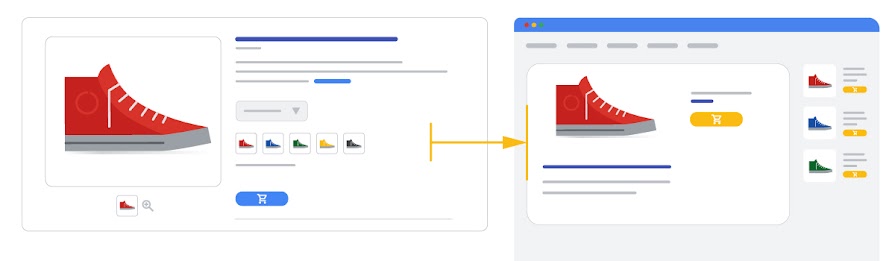
Submit a unique image that represents the distinguishing details of each variant When selling products that come in multiple options, submit a distinct, dedicated image for every individual variant. Shoppers expect the image they see in ads and free listings to accurately reflect the exact version, color, and finish they are selecting. Key guidelines for variant imagery:
|
|
Frame your product in the image space so that it takes up no less than 75%, but not more than 90%, of the full image.
|
Helpful tips
- Enhance your images with Product Studio: You can increase resolution, remove backgrounds, and generate custom scenes using Product Studio, available in Merchant Center and the Google & YouTube app on Shopify.
- Keep in mind that images may be automatically cropped: Google may test subtle cropping on your image to better frame the item and highlight key product details for shoppers.