Unity for Visual Studio Code
The Unity extension adds Unity debugging and editor features to Visual Studio Code, building on C# Dev Kit and C#. It provides:
- A Unity debugger to debug your Unity editor and your Unity players.
- Unity specific C# analyzers and refactorings.
- Syntax highlighting for Unity file formats (.asmdef, .shader, .uss, .uxml).
- IntelliSense for Unity API messages.

Getting Started
The Visual Studio Editor Unity package generates project files used by C# Dev Kit and C# for code navigation and completion.
Use Visual Studio Editor 2.0.20 or later in every Unity project used with this extension, rather than the Visual Studio Code Editor package.

Unity 2021
- Open Unity's Package Manager (Window / Package Manager).
- Update the
Visual Studio Editor package to at least 2.0.20.
Unity 2022 and Unity 2023
- Open Unity's Package Manager (Window / Package Manager).
- Unlock the
Visual Studio Editor package.
- Go to the
Version History tab of the Visual Studio Editor package.
- Update the
Visual Studio Editor package to at least 2.0.20.
After updating the package, set Visual Studio Code as Unity's external script editor in Preferences > External Tools. Verify that the dialog shows Visual Studio Editor v2.0.20 or later, then press Regenerate project files.
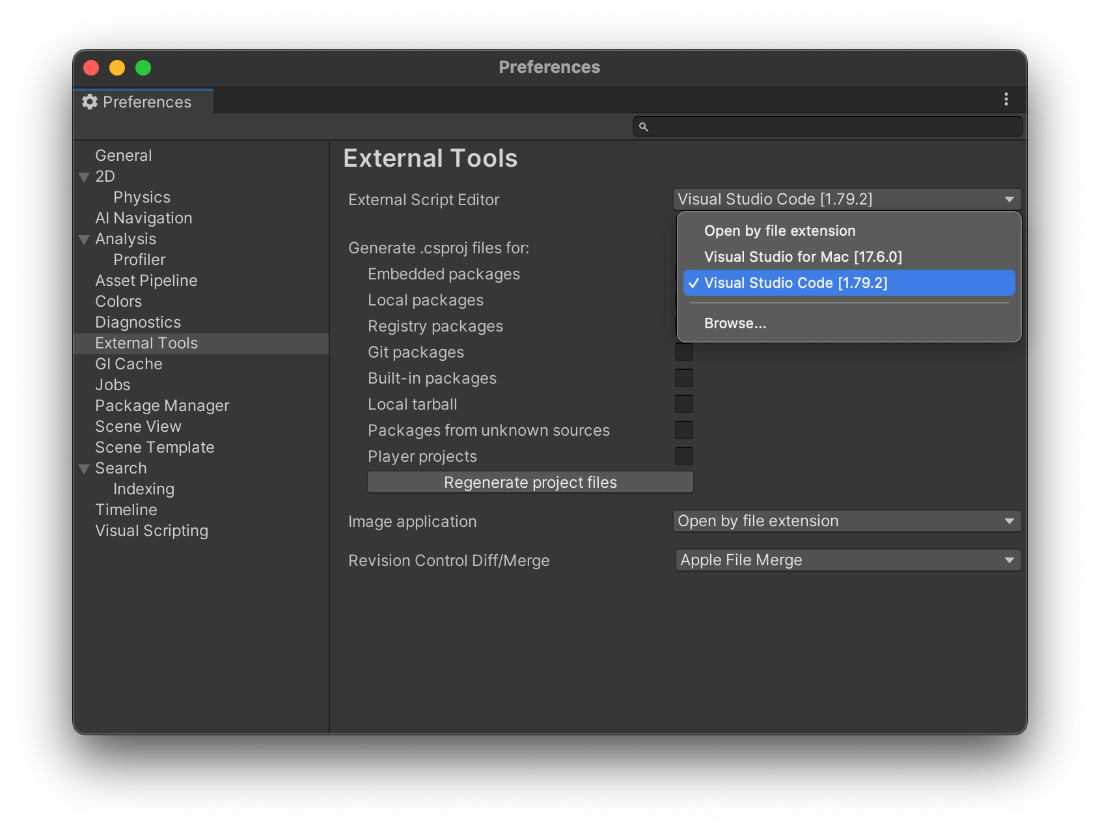
Double-click on a C# script, and your Unity project will open in Visual Studio Code.
Commands
The Unity extension provides these Command Palette entries:
Attach Unity Debugger: lists Unity Editors and Players available for debugger attachment.Unity API Reference: opens the Unity documentation for the selected code construct.
Attaching the Unity debugger to a Unity player
The default debug configuration attaches to the Unity Editor running the open project.
To debug a Unity Player, use the Attach Unity Debugger command.
Alternatively, add a configuration to .vscode/launch.json for a known IP address and debugger port:
    {
        "name": "Attach to Xbox",
        "type": "vstuc",
        "request": "attach",
        "endPoint": "127.0.0.1:56321"
    }
Requirements
- Unity 2021 LTS or greater.
- Activated C# Dev Kit extension in Visual Studio Code.
- .NET 10 runtime or greater, located or acquired through the .NET Install Tool.
Visual Studio Editor Unity package 2.0.20 or greater.
Found a bug?
Use Visual Studio Code's Help > Report Issue. Select An extension under File on, then choose Unity to include diagnostic information with the report.
Alternatively, file an issue on the GitHub issue tracker.


